Add memory from Liveboards
Spotter can read a Liveboard and extract structured memory — business rules, metric definitions, and analytical patterns — that it applies to future questions automatically. This page covers how to generate that memory, what gets captured, and how to validate and correct it.
| To enable this feature, contact your administrator. |
Before you start
| Requirement | Details |
|---|---|
Feature enabled |
An admin must enable Memory from Liveboards and conversations (Admin > All Orgs > AI settings > Spotter 3 capabilities) |
Spotter version |
Spotter 3 required |
Permission |
Manage Memory access or data model edit access on the associated data model |
Liveboard type |
Must be built on data models — Liveboards built entirely on tables or Views are not supported |
Enable memory from Liveboards
Memory from Liveboards is off by default and is enabled by the same Early Access option as learning from conversations.
To enable:
-
Navigate to the Admin tab and select All Orgs.
-
Select AI settings under Application settings.
-
Click Edit for the Spotter 3 capabilities section and set Memory from Liveboards and conversations to Enabled.
-
Click Save.
What happens when memory is disabled:
-
No new memory can be generated from Liveboards.
-
Spotter stops fetching and applying any previously-generated memory.
-
Existing memory is not deleted — if the feature is re-enabled, all previously-generated memory becomes active again immediately.
-
Reference questions, business terms, and instructions are not affected.
Who can generate memory from a Liveboard
Users with Manage Memory access or data model edit access on the data models associated with the Liveboard can generate memory from it. If a Liveboard touches data models the user cannot access, those models are excluded from generation.
How to generate memory from a Liveboard
-
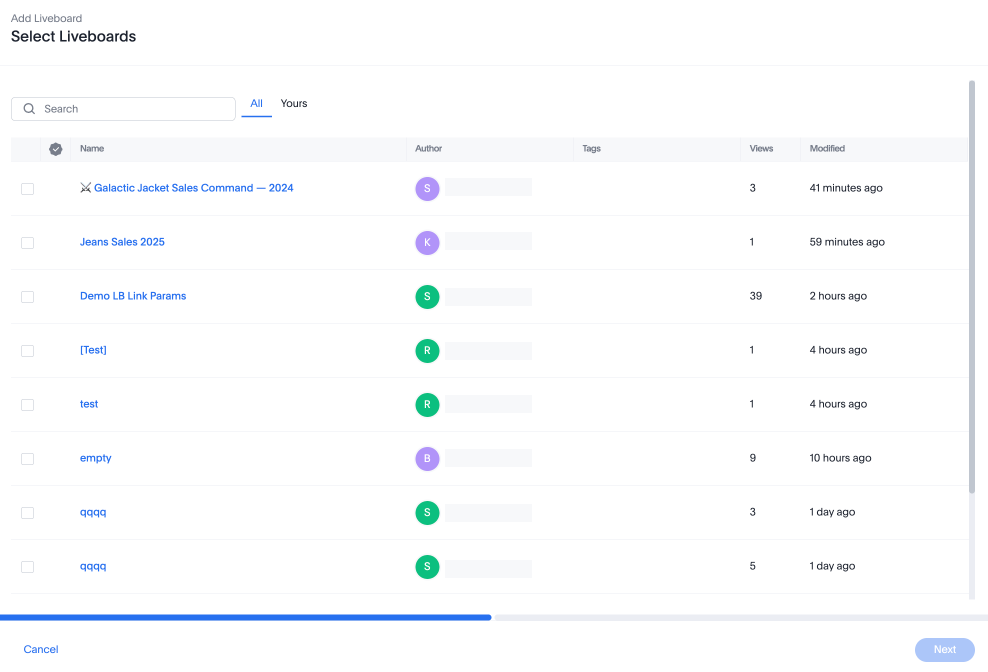
Navigate to Data workspace > Memory sources > Liveboards tab > + Add Liveboards.
-
The Select Liveboards modal appears. Choose up to three Liveboards to learn from. Start with Liveboards that reflect your most common or trusted query patterns.
-
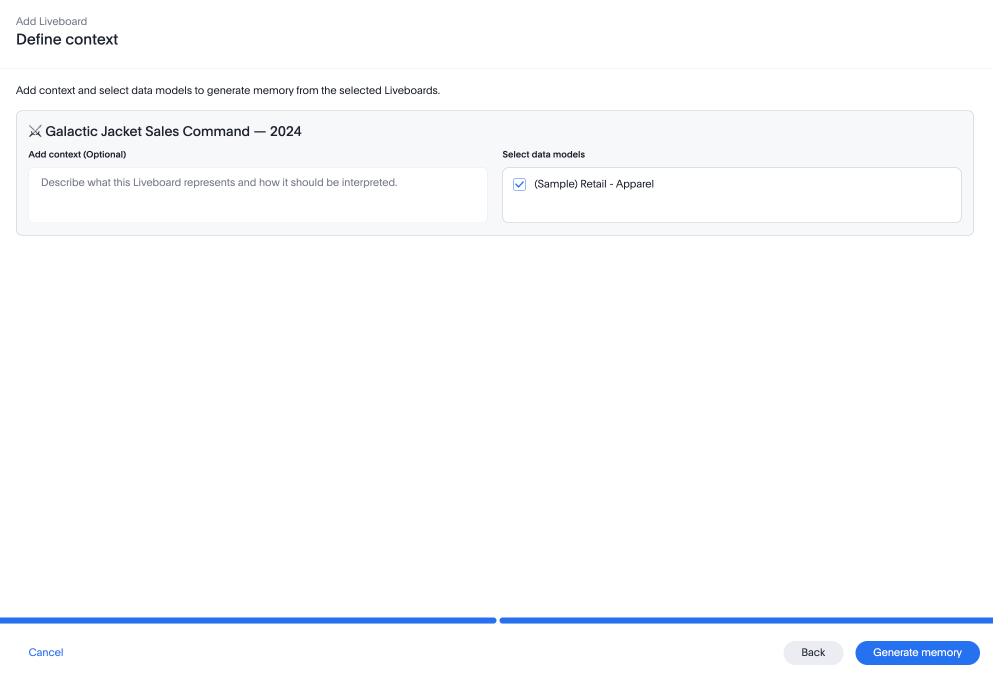
The Define context modal appears. Use context to describe the Liveboard — what it tracks, who it is for, and what use case it serves. This helps Spotter generate memory that reflects the right analytical intent.
Good examples:
-
"This Liveboard tracks pipeline health for the EMEA sales team."
-
"Used by CSM leadership to review quarterly retention metrics."
-
"Focuses on product adoption for enterprise accounts post-onboarding."
Avoid using context to tell Spotter which charts to focus on, which to skip, or to modify how specific values are interpreted during learning. These instructions will not be acted on.
All accessible data models associated with the Liveboard are selected by default; deselect any you don’t want to generate memory for.
-
-
Click Generate memory. Generation runs asynchronously, and typically takes ten to twenty minutes depending on the size of the Liveboard. You can reference the status column to see if memory generation is complete. ThoughtSpot notifies you once memory is fully generated.
Writing a useful context description
The context description is the most important input. Spotter uses it to interpret what the Liveboard represents and which patterns are worth generalizing into memory. Describe the business purpose and audience — not the charts.
| Good context | Bad context |
|---|---|
"This Liveboard tracks pipeline health for the EMEA sales team — used by sales managers to review weekly deal progression" |
"Show Spotter the revenue chart and skip the usage chart" |
"Used by CS leadership for quarterly retention review — focuses on renewal risk and time-to-value metrics" |
"Use the formulas exactly as shown in the Liveboard" |
"Focuses on product adoption for enterprise accounts during the first 90 days post-onboarding" |
"Ignore the filters at the top — those are for a specific event" |
Good context tells Spotter what the Liveboard means. Bad context gives Spotter instructions about how to process it — Spotter derives those patterns itself.
What will not be remembered as memory
The following are not stored as memory:
-
Charting preferences or visualization types.
-
Visualizations built on tables or Views — memory generation requires data models.
-
Sets created from visualizations.
-
Global filters and parameters applied on the Liveboard.
If a Liveboard is built entirely on tables or Views, memory generation fails. If the Liveboard has a mix of data model charts and table/View charts, generation proceeds on the data model charts only.
Validating generated memory
After generation completes, verify what Spotter has learned before relying on it in production. There are three ways to check:
-
Download memory. Select the More
 for the Liveboard entry and select Download memory. See Managing memory for how downloads work and what is included.
 -
Ask Spotter. In a conversation, ask "What do you remember about this dataset?" and Spotter will surface relevant memory entries it is holding.
-
Spotter thinking view. While asking questions in Spotter, expand the Thinking view to see exactly which memory context is being fetched and applied for that query.
The most reliable approach is to run five to ten representative questions on the data model after generation and compare answers to your baseline.
Correcting wrong memory
If Spotter’s answers degrade after generation, use the Thinking view to identify which memory context was applied on a bad answer.
Once identified, you have two options:
- Correct in conversation
-
Tell Spotter the correct definition mid-conversation. For example: "No, that’s wrong — Sets usage = cohort-save event. Remember this." Spotter updates that specific rule. This is the faster option when only a few rules are incorrect.
- Delete the source and regenerate
-
From Memory sources, delete the Liveboard source. This removes all memory generated from it. Then regenerate from a cleaner or more focused Liveboard.
We do not support editing individual rules from the memory source.
When memory gets out of date
Memory reflects the state of the Liveboard and data model at the time generation was run. It does not update automatically.
- If the data model changes after generation
-
Memory referencing old column names, metric definitions, or relationships becomes stale. Correct specific stale rules from conversation, or delete the Liveboard source and regenerate after the data model has stabilized.
- If the Liveboard is edited after generation
-
Memory is not refreshed automatically. Delete the source from Memory sources and re-trigger generation on the updated Liveboard.
Permissions
| Action | Who can do it |
|---|---|
Enable or disable the memory feature |
Admins only |
Generate memory from a Liveboard |
Users with Manage memory or data model edit access on the associated Models |
Delete a Liveboard memory source |
User who added it, or admin user |
View and download memory |
Visible to all users. Download scope determined by role and data model/ Liveboard access |
View memory per Liveboard |
Users with object-level view access to that Liveboard |
After generating memory, use Add memory from conversations to correct anything that’s wrong and continue building context as your team uses Spotter.
We highly recommend that you register for the free Spotter Administration course in ThoughtSpot University that covers the information in this article, and watch the Adding Memory to Spotter lesson.
See other training resources at ThoughtSpot University.

