Act as user
ThoughtSpot allows authorized administrators to start a session as another user, referred to as Act as user. While in this mode, the administrator sees ThoughtSpot exactly as the target user does, with the same data access, role-based permissions, Org context, content visibility, and theme. Session details are recorded in the audit log under the administrator’s identity.
Use Act as user to:
-
Reproduce permission-related issues without creating shadow accounts or requesting screen shares.
-
Verify that row-level security, column-level security, and sharing rules apply correctly before rolling out changes.
-
Provide support by seeing and resolving issues in the user’s exact context.
Prerequisites
Act as user is available for ThoughtSpot Analytics customers with the new Admin Portal enabled. A cluster administrator must turn on the feature from Admin > Feature Management > Early Access.
Who can use this feature
Administrators
| Administrator role | Can impersonate |
|---|---|
Cluster Admin |
Any user within the entire cluster across all Orgs. |
Org Admin |
Users whose Org membership matches their own or is a sub-set of it. |
Neither Cluster Admins nor Org Admins can impersonate themselves or another Cluster Admin.
Target users (consent)
Each user controls whether administrators can impersonate their account. In Act as setting on the user’s profile, the Allow admins to act as you preference is set to Don’t allow by default. Before an administrator can start a session as that user, the user must grant access for one of the following periods:
-
Allow for 6 hours
-
Allow for 24 hours
-
Allow for 3 days

Access expires automatically at the end of the selected period, and the setting returns to Don’t allow.
The user receives an email at the start and end of an impersonation session. For more information, see Allow administrators to act as you.
Session behavior
What the administrator can do
During an impersonation session, the administrator has access to the platform as the target user.
|
Third-party and agentic capabilities, such as Spotter, AgentSpot, and Analyst Studio, are unavailable during an impersonation session by default. |
Session limits and expiry
Sessions end when any of the following conditions are met first:
-
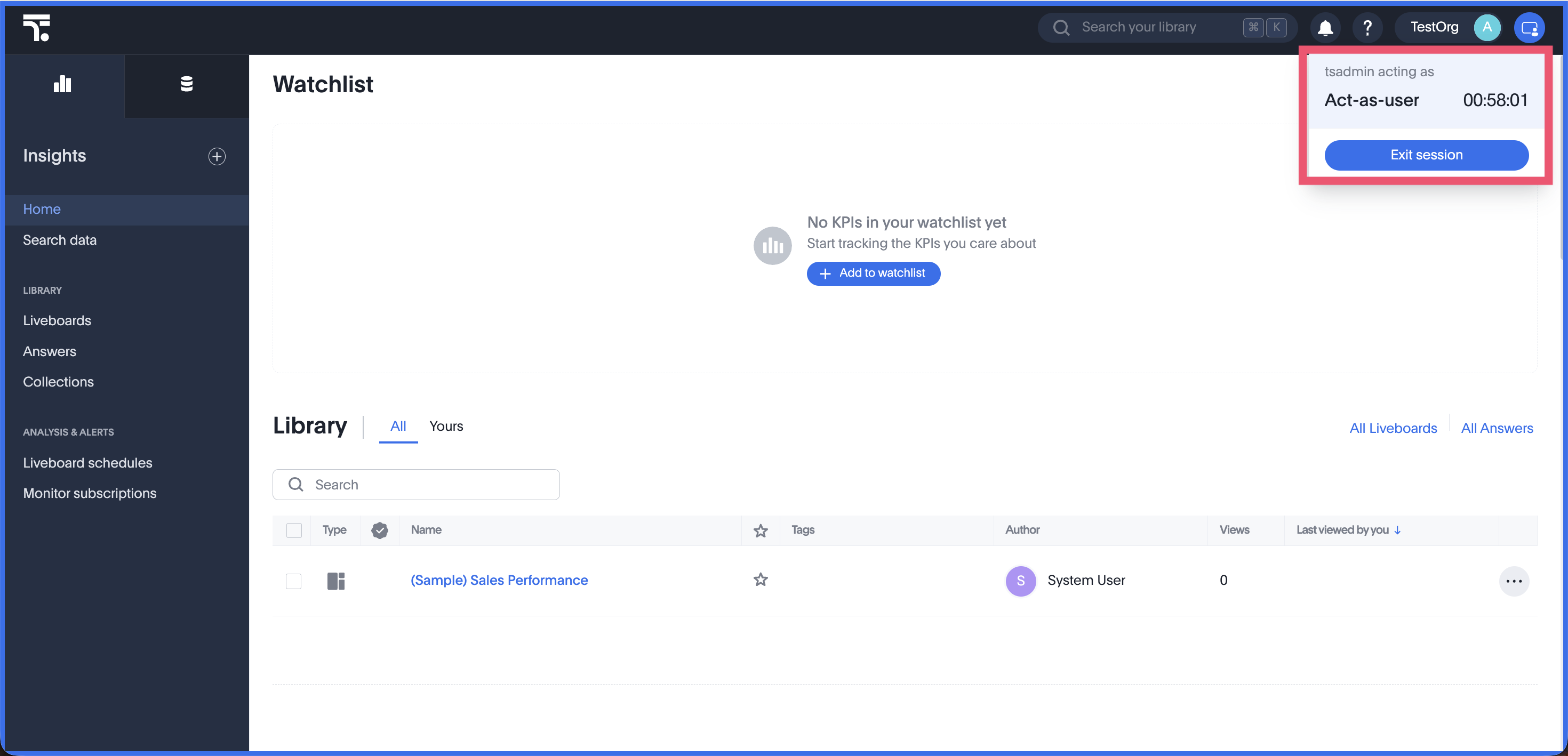
The administrator selects Exit session in the impersonation banner.
-
The session reaches the 60-minute hard cap from when impersonation started. This limit cannot be extended and applies regardless of activity.
Closing a browser tab does not end the session. All tabs in the same browser share the same impersonation session, so an administrator can have only one active impersonation session at a time in that browser.
The following rules apply to concurrent sessions:
-
An administrator can act as multiple users at the same time by starting each session in a separate incognito browser tab.
-
A user can be impersonated by only one administrator at a time.
-
An administrator cannot start a new impersonation session from within an active one.
Start an impersonation session
Before you can act as a user, the user must grant access in Act as setting on their profile.
-
Navigate to Admin settings > User management.
-
Locate the user you want to act as.
-
Click the Act as user option from the user’s action menu. Alternatively, you can also find the Act as user option in the
 menu for the respective user on the Users list page.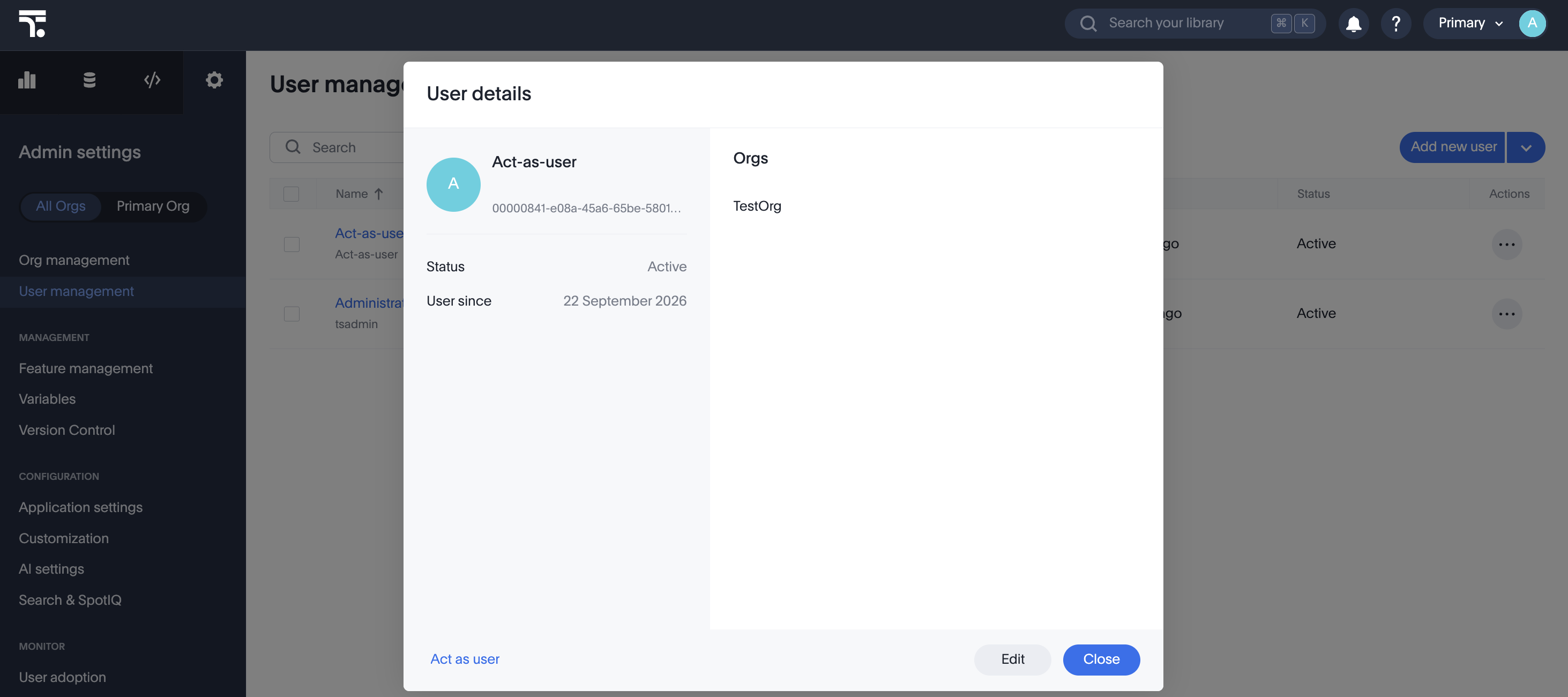
The Act as user option is visible only if the target user is an
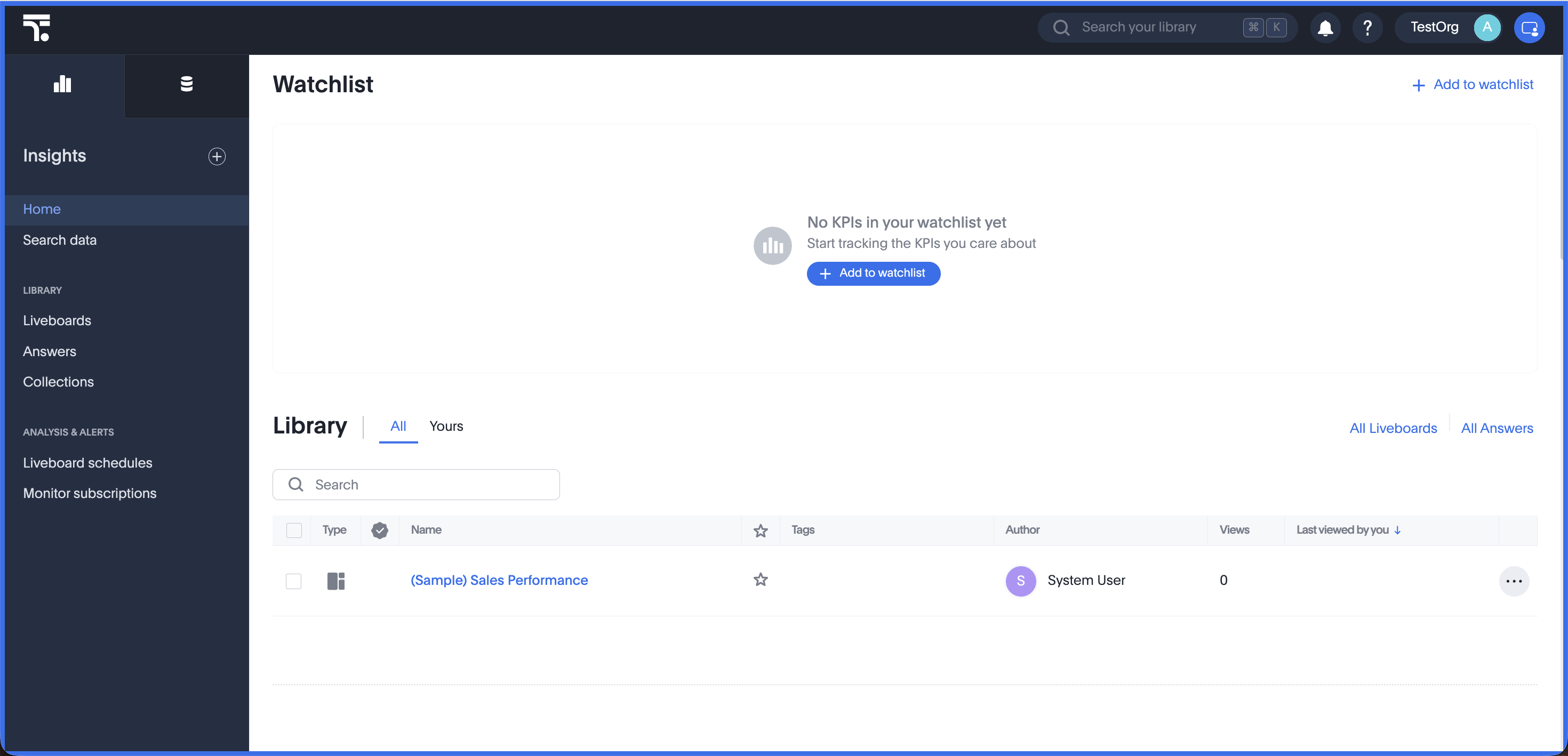
Activeor aPendinguser.A colored impersonation border appears around the perimeter of the screen. You are now viewing ThoughtSpot as the target user.
-
To end the session before it expires, click Exit session.
Limitations
-
The support is currently only through the ThoughtSpot UI.
-
An administrator cannot impersonate themselves.
-
Only one active impersonation session is allowed per administrator at a time in a browser window.
-
The session cannot be extended past 60 minutes.