Connect to Oracle in Analyst Studio
Additionally supports: Oracle Autonomous Database
Supported JDBC drivers and known issues
| Driver | Driver Release Date | Analyst Studio Removal Date |
|---|---|---|
Oracle v 23.5 |
7/26/2024 |
|
(Recommended) Oracle v 21.1 |
1/14/2021 |
|
Oracle v 19.11 |
6/4/2021 |
|
Oracle v 19.7 |
4/1/2019 |
There are no known issues for these drivers.
Database configuration instructions
Oracle Autonomous Database (Public Endpoint)
-
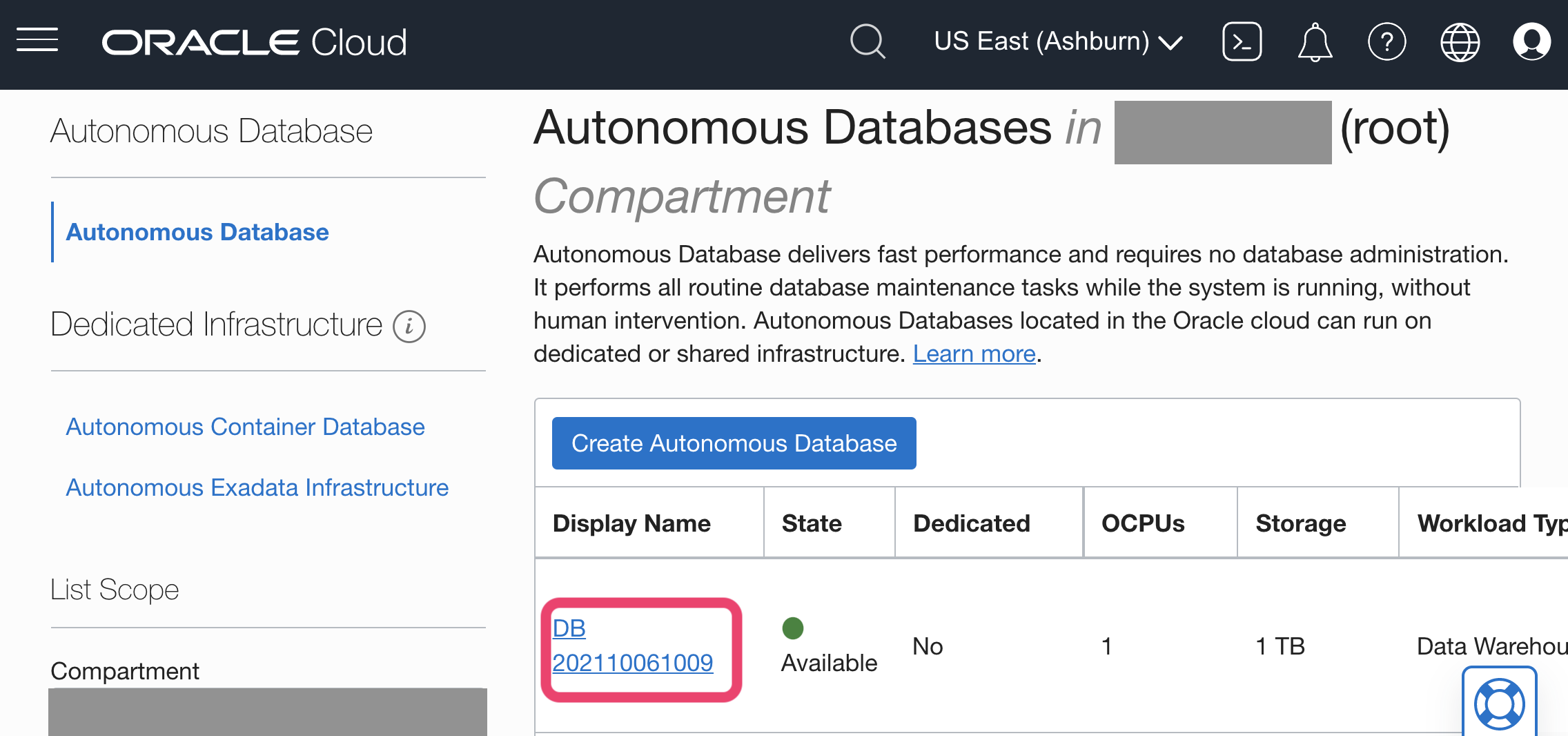
Navigate to your Oracle Cloud Autonomous Databases page and click on your instance.
-
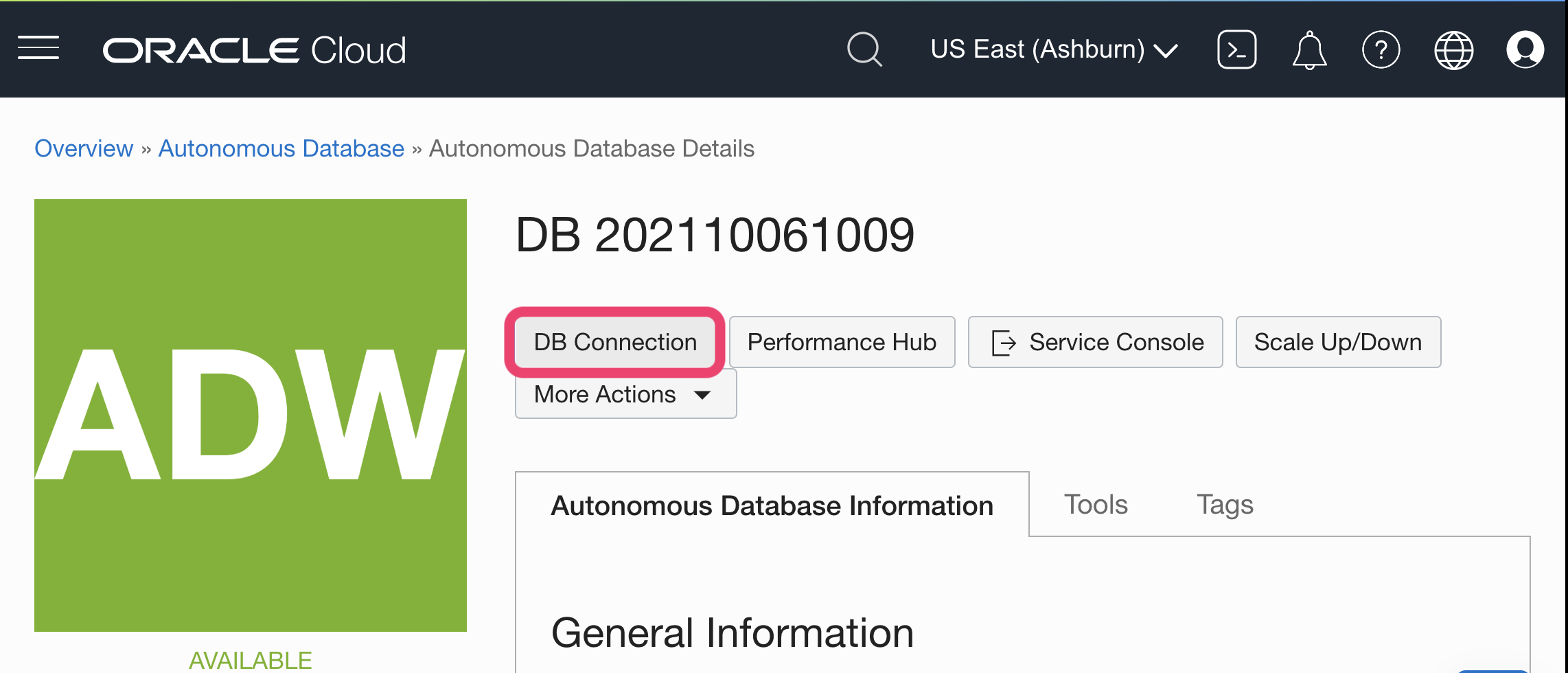
Click on DB Connection.
-
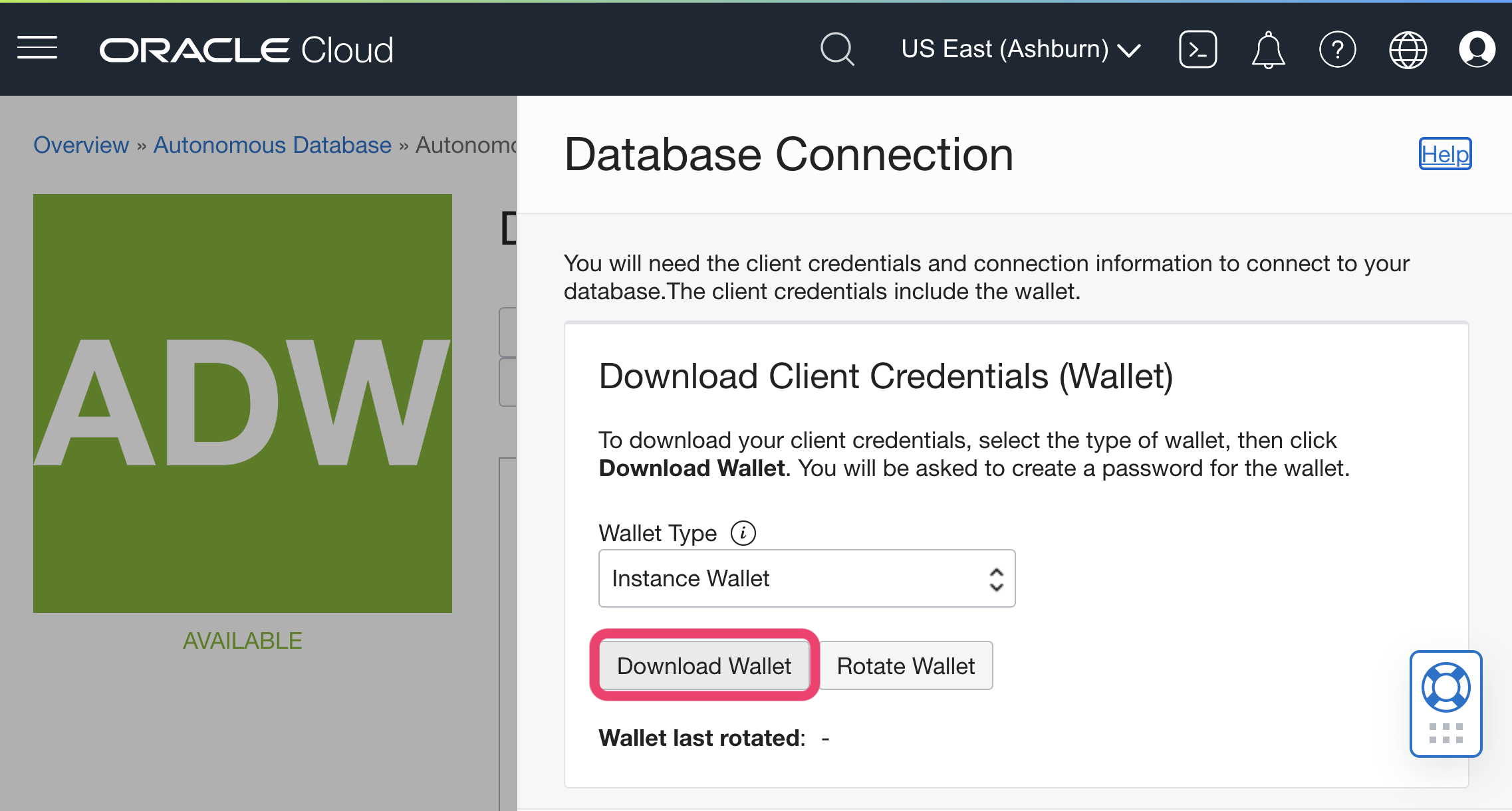
Click on Download Wallet to retrieve the zip file to upload to Analyst Studio (instance wallet contains credentials for single DB and regional contains all DBs in that region).
-
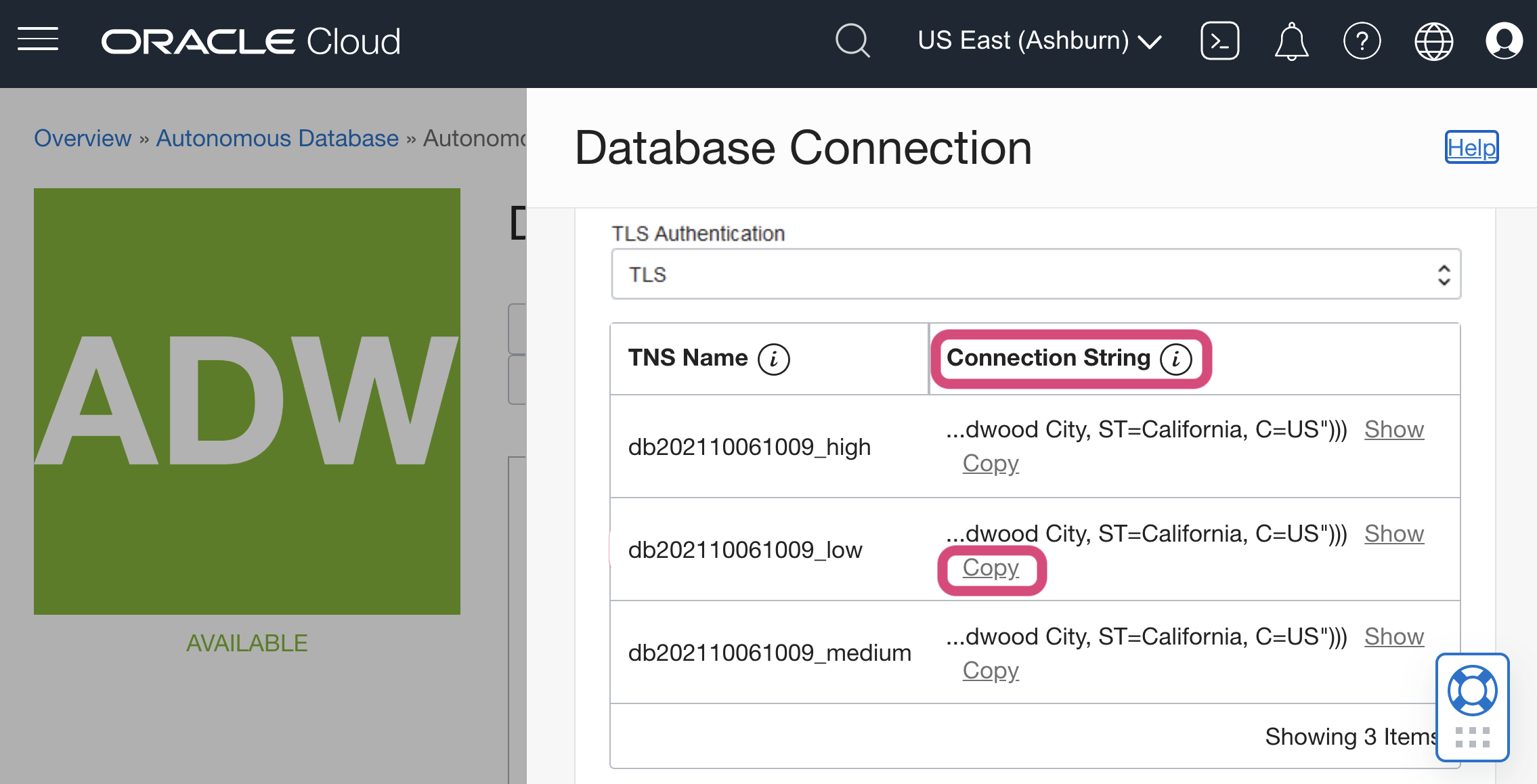
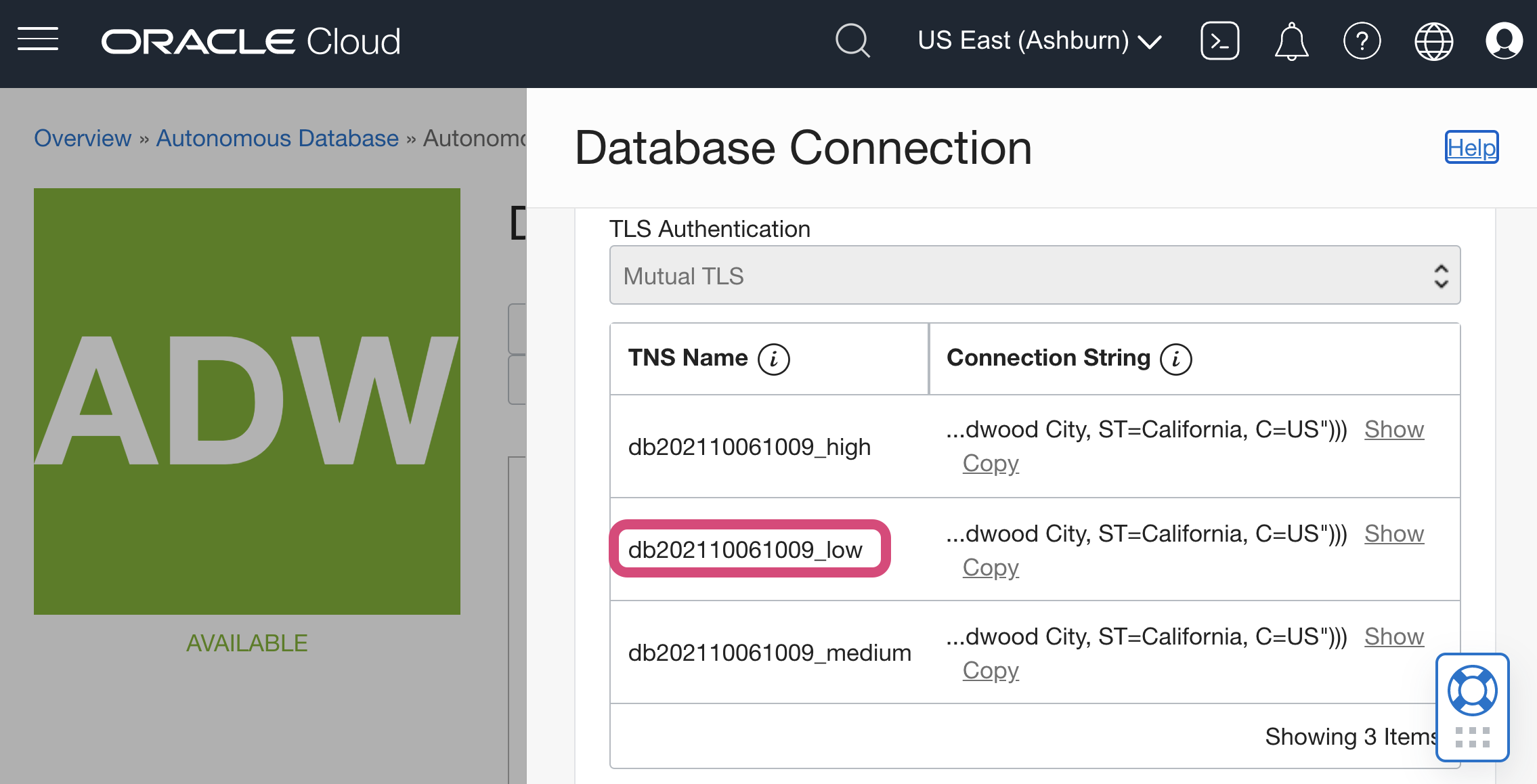
Scroll down to see the Database Service (TNS) Names to copy into Analyst Studio. It is usually the database name + “_” + low, medium or high. These predefined names indicate the amount of resources to each SQL statement; high results in the highest performance, but supports only a few concurrent queries. To restrict access to certain database service names, you can delete the entries from the tnsnames.ora file in the wallet.
Oracle Autonomous Database (Private Endpoint)
| mTLS requirement must be relaxed to allow for TLS (default for ADB is to require mTLS). |
-
Navigate to your Oracle Cloud Autonomous Databases page and click on your instance.
-
Click on DB Connection.
-
Scroll down to select the Connection string to the desired TNS name to copy into Analyst Studio.