Add a Dremio connection
Configuring OAuth
If you plan to use OAuth with Dremio, you must configure it before you can create a connection. For details, see Configure OAuth for a Dremio connection.
Adding a Dremio connection
To add a new connection to Dremio:
-
Navigate to Data workspace > Connections.
-
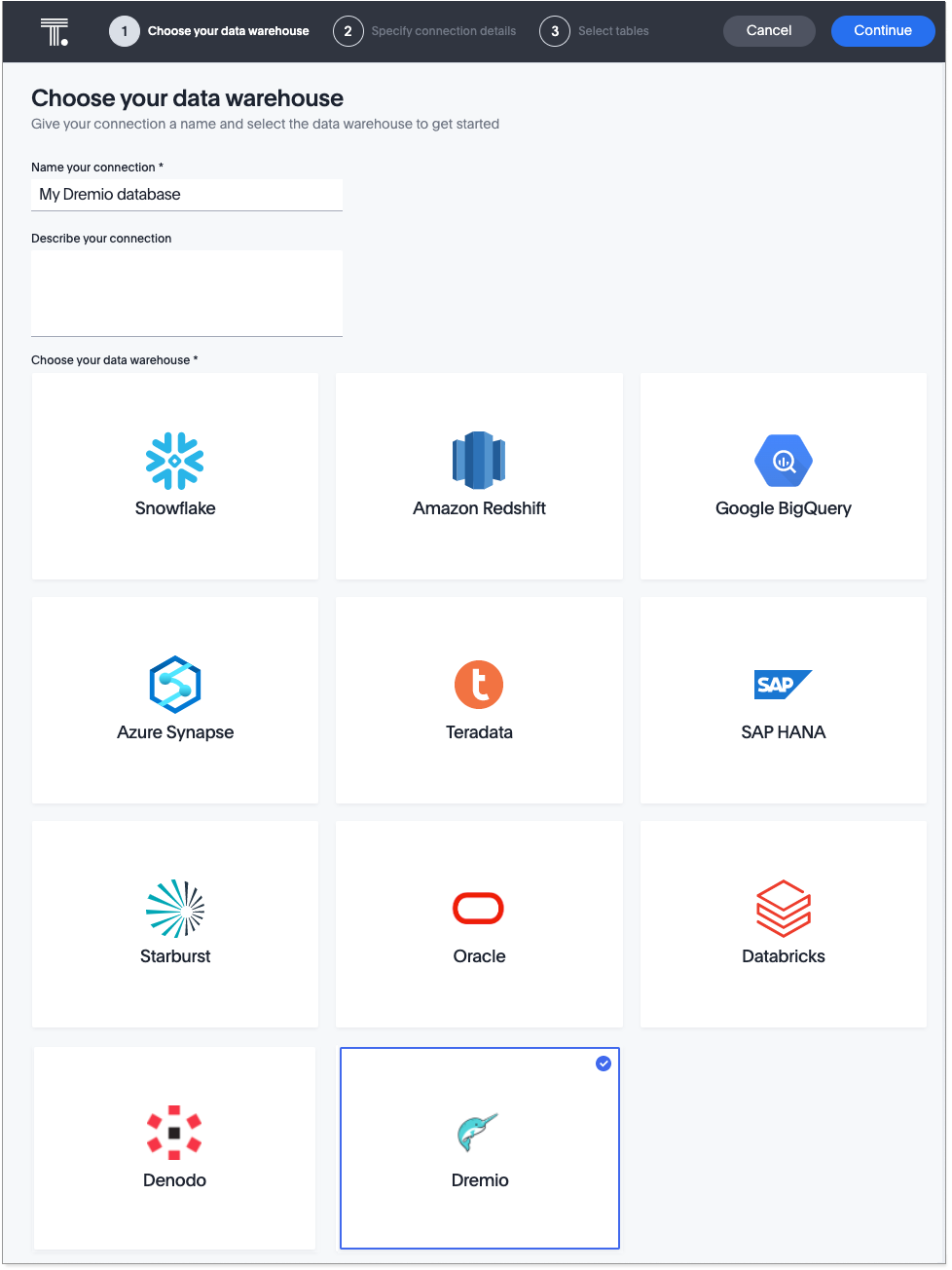
Click + Create connection, and select the Dremio tile. Then click Next.
-
Create a name for your connection, a description (optional), and enter the connection details for your Dremio data source. Then click Next.
In the connection details, select either Use Service Account or Use OAuth and enter the connection details for your Dremio data source.
If you are creating a connection to Dremio Software, you must select the service account option. 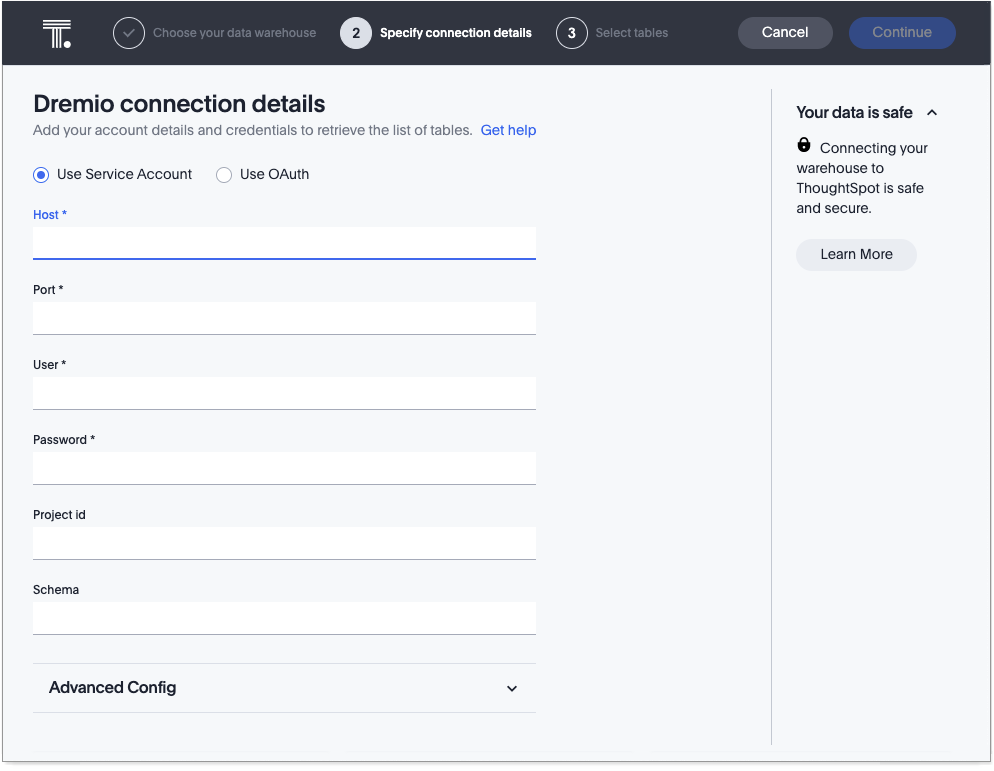
Refer to the Dremio connection reference for more information on each of the specific attributes you must enter for your connection.
The Project id field is only used with Dremio Cloud. -
(Optional) Provide additional key-value pairs that you need to set up your connection to Dremio or customize additional JDBC parameters supported by Dremio, by doing the following:
-
Select the Advanced Config menu to reveal the Key and Value fields.
-
Enter your key and value information. Refer to the Dremio JDBC documentation.
-
To add more keys and values, select the plus sign (+), and enter them.
-
Any key-value pairs that you enter must be defined in your Dremio data source. Key-value pairs are case-sensitive.
-
If you want to save your connection without selecting tables, click Save and exit. ThoughtSpot saves your connection and you are returned to the Data workspace. You can edit the connection later to add tables and columns.
-
-
Select tables and the columns from each table, and then click Create connection.
A message appears indicating the number of tables and columns that will be added to your connection.
After you add the connection, you can search your Dremio database right away by selecting Search now.
Your new connection appears on the Data > Connections page.
The connection you just created is a link to an external data source. If the external data source contains joins, ThoughtSpot recognizes them.
After you add the connection, you can search your database.
Click the name of your connection to view the tables and columns in your connection.
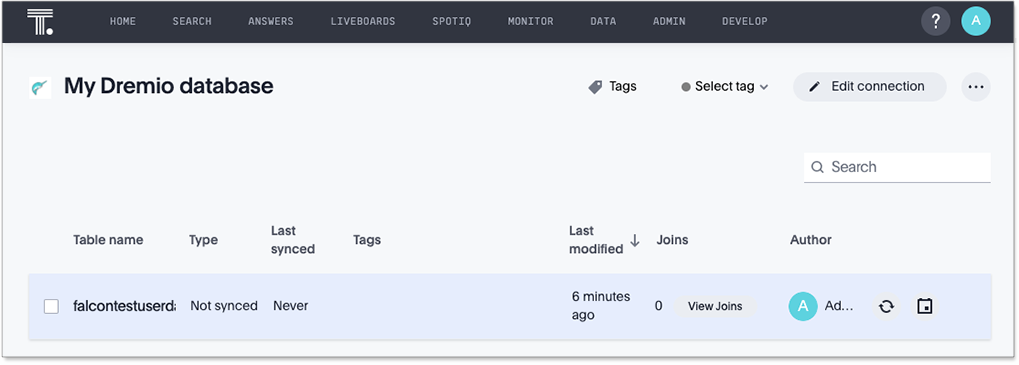
You can now perform a live query on the tables and columns of your connection. Because the selected tables and columns in your connection are outside ThoughtSpot (they are linked, not imported), it may take a little longer to render the initial search results. This is because ThoughtSpot does not cache linked data.