New homepage and navigation
The homepage and navigation of the ThoughtSpot app have been entirely redesigned.
New homepage
On the new home page, you can explore insights, search and access your library of Answers and Liveboards, and more.
ThoughtSpot has a new focused home page experience option. The focused home page delivers a streamlined, contemporary experience for users that highlights the Spotter experience. It includes shortcuts to allow you to do a Quick search, Deep analysis, or Know your data. It also includes a list of Recents and your Watchlist KPIs.
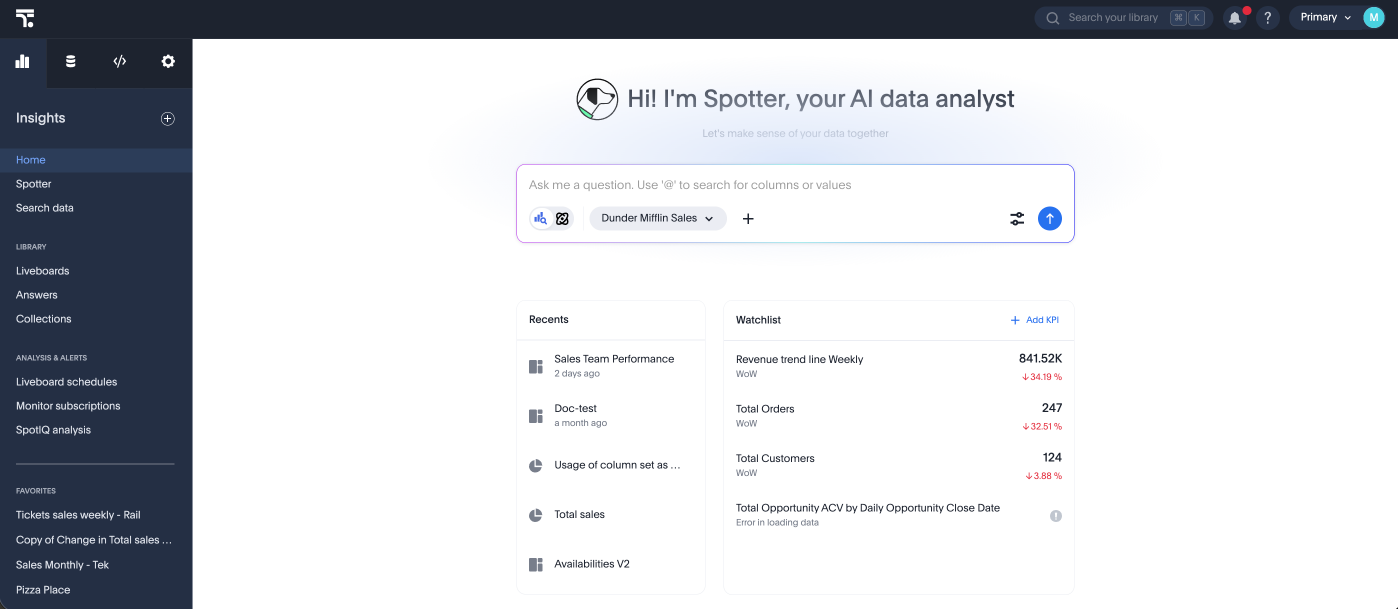
Administrators can manage the home page version for all Orgs when this feature is enabled. To enable this feature, contact your administrator.
Enabling the focused home page for administrators
To enable the focused home page:
-
Go to Admin settings.
-
Select All Orgs.
-
Select Home Page & App Experience.
-
Go to Homepage experience and clck Edit.
-
Select Focused and click Save.
New navigation
The new global navigation organizes ThoughtSpot into different contextual sections. Each one is designed for a common type of ThoughtSpot user. You navigate to each option using the tabs in the left hand menu.
The Insights tab is designed for the business user.

The Data workspace tab is designed for the data engineer.

The Develop tab is designed for developers.

The Admin settings tab is designed for administrators.

Features are organized in the following ways:
| App | User | Features |
|---|---|---|
Insights |
Business user |
|
Data workspace |
Data engineer |
|
Develop |
Developer |
|
Admin settings |
Administrator |
|
Trying to find something in the redesigned navigation?
Here’s a quick reference which compares where things were in the previous navigation to where they are in the redesigned navigation:
| Previous location | New location |
|---|---|
Home |
Insights > Home |
Answers |
Insights > Answers |
Liveboards |
Insights > Liveboards |
SpotIQ |
Insights > SpotIQ Analysis |
Data |
Data workspace |
Develop |
Developer |
Admin |
Admin settings |
Command palette
You can now access anything in ThoughtSpot from a single keystroke. The command palette (Cmd + K on Mac / Ctrl + K on Windows and Linux) is a global command center that unifies navigation, search, and actions across the ThoughtSpot platform. Instead of switching between menus, list pages, and contextual controls, you can find content, trigger workflows, and navigate to any part of the product — all from one place.
With the command palette, you can:
-
Search across Liveboards, Answers, Models, and more in one place.
-
Launch a new Answer, Liveboard, or Spotter chat.
-
Jump to any section of ThoughtSpot directly, from Home to Admin settings.
-
Type your data question and send it straight to Spotter.
-
Press forward slash (/) to filter your search by Liveboards, Answers, Admin Settings, Create, Spotter, Models, Tables, and Collections.
-
Search results highlight matching terms for faster scanning, and visuals make it easier to understand what’s happening as you search.