Enabling an AWS PrivateLink between ThoughtSpot Cloud and your Redshift data warehouse
Learn how to deploy an AWS PrivateLink between your Redshift data warehouse and the ThoughtSpot Cloud tenant, if you have a Redshift Serverless Account.
| AWS PrivateLink is only available to Enterprise Edition users. |
Your data’s security is important. ThoughtSpot encrypts all your data by default. For an additional layer of security and network reliability, you can use an AWS PrivateLink. This option is currently available for your Amazon Aurora MySQL, Amazon Aurora PostgreSQL, Amazon RDS MySQL, Amazon RDS PostgreSQL, Amazon Redshift, Databricks, Denodo, Dremio, Oracle, PostgreSQL, SAP HANA, Snowflake, SQL Server, Starburst, or Teradata data warehouse connections.
ThoughtSpot supports a maximum of five PrivateLinks in your environment, in any combination of supported cloud data warehouses. For example, you could have a PrivateLink for Denodo, one for Databricks, and one for Starburst in the same environment.
This article details how to enable a PrivateLink for Redshift with Redshift Serverless; to enable it for other data warehouses, refer to:
| You can enable a maximum of five PrivateLinks in your environment. |
To deploy an AWS PrivateLink, you must work with ThoughtSpot Support and follow the procedure in this article.
Create an AWS PrivateLink connection with Redshift Serverless
There are two procedures for creating a connection with AWS PrivateLink– one where Redshift Serverless and your ThoughtSpot instance are in the same region, and one where Redshift Serverless and your ThoughtSpot instance are in different regions. We will first describe the process when Redshift Serverless and your ThoughtSpot instance are in different regions.
Prerequisites
-
You must have a Redshift account.
-
The customer can obtain the Availability Zone ID (AZ ID) for the PrivateLink from ThoughtSpot Support. The customer must then incorporate this AZ ID into both the endpoint service and Network Load Balancer (NLB) configuration.
-
You must obtain the ThoughtSpot AWS Account Amazon Resource Name (ARN) from ThoughtSpot Support. This is required for step 6 of Configure the Endpoint Service. For example:
arn:aws:iam::999999999999:root.
Enable an AWS PrivateLink with AWS Serverless Redshift
Use this method if your ThoughtSpot SaaS instance and Redshift Serverless data warehouse reside in different AWS Regions (for example, your instance in us-east-1 and Redshift Serverless in us-west-2).
|
To deploy an AWS PrivateLink between your Redshift data warehouse and the ThoughtSpot Cloud tenant, follow these steps.
Configure the Endpoint Service in your AWS Console
After completing the prerequisites, you must configure the Endpoint Service.
-
Sign in to the AWS Console.
-
Create a Network Load Balancer (NLB) routing TCP traffic on port 5439 to your Redshift database. Ensure that "Cross Zone Load Balancing" is enabled in the load balancer. For more information, see Create a Network Load Balancer.
-
If the NLB has an associated security group, the customer must ensure that the ThoughtSpot Virtual Private Cloud (VPC) Classless Inter-Domain Routing (CIDR) block is permitted within the security group. For assistance with obtaining the VPC CIDR, contact ThoughtSpot Support.
-
Navigate to .
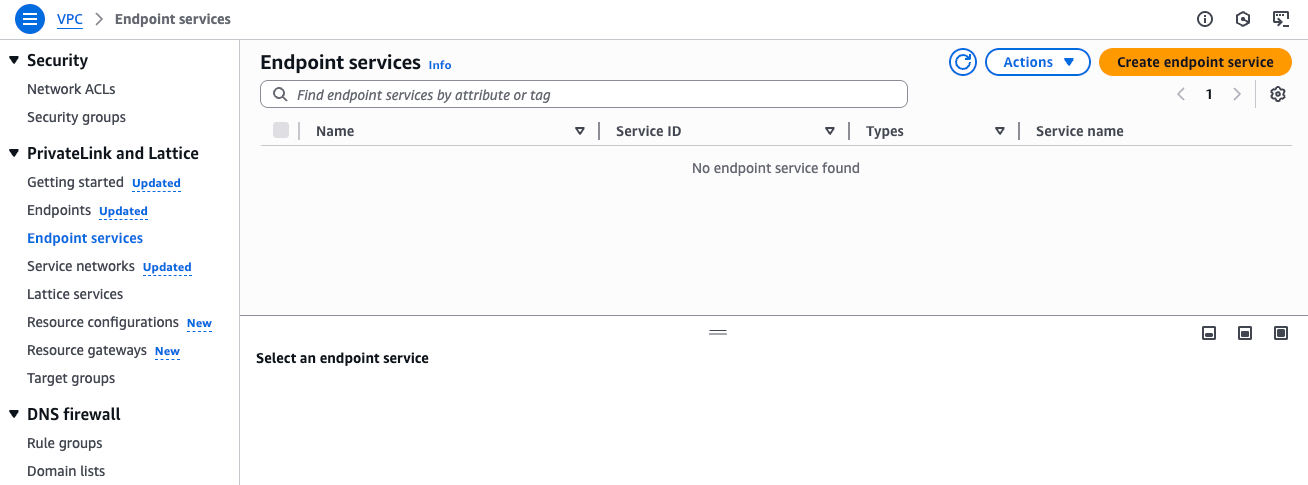
-
Select the Redshift NLB you created in step 2.
-
Select Require Acceptance for Endpoint.
-
Select . Add the ThoughtSpot AWS Account Amazon Resource Name (ARN) that you obtained from ThoughtSpot Support in the prerequisites.
-
Select Endpoint Service.
-
Write down the values for:
-
Service name: for example, com.amazonaws.vpce.us-west-2.vpce-svc-0123456789abcdef
-
Availability Zones IDs: for example, usw2-az1, usw2-az3, usw2-az2
You must provide the service name and availability zone IDs to ThoughtSpot Support.
-
Exchange AWS and ThoughtSpot information with ThoughtSpot Support
-
Send the Service name and Availability zones you gathered in step 8 of Configure the Endpoint Service in your AWS Console to ThoughtSpot Support.
-
After ThoughtSpot Support configures the AWS PrivateLink in ThoughtSpot, ask them to send you the PrivateLink Endpoint DNS name.
Accept the PrivateLink Request
-
Navigate to .
-
Select the Endpoint Service you created in Configure the Endpoint Service in your AWS Console.
-
Select Endpoint Connections.
-
Select the connection from the ThoughtSpot AWS Account. Its status should be Pending Acceptance.
-
Select .
-
Whitelist the Load Balancer subnet CIDRs in the Redshift Security Group.
-
Enable Cross-Zone Load Balancing on the Load Balancer.
-
Add the cluster CIDR to the NLB security group.
Configure Connections
Configure Connections for Redshift, using the PrivateLink Endpoint DNS name from ThoughtSpot Support for the Host field. For example, vpce-12345a9c7e43959d-xxo2u2xx.vpce-svc-037b1f73d3de3a5b4.us-west-2.vpce.amazonaws.com.
Enable an AWS PrivateLink connection
Use this method if your ThoughtSpot SaaS instance and Redshift Serverless data warehouse reside in the same AWS Region (for example, both are in us-east-1).
|
Obtain ThoughtSpot network details
-
Open a ticket with ThoughtSpot Support to request the following networking details for your ThoughtSpot instance:
-
AWS Account ID
-
VPC ID
-
Configure Redshift Serverless Workgroup
-
Log in to your AWS Console and navigate to Amazon Redshift.
-
Select Redshift Serverless from the sidebar and click on your target Workgroup.
-
Navigate to the Data access tab.
-
Locate the Granted accounts section and click Grant access.
Grant Specific VPC access
-
A configuration window will appear. You must restrict access to the specific ThoughtSpot Virtual Private Cloud (VPC).
- AWS Account ID
-
Enter the ThoughtSpot AWS Account ID provided by Support.
- VPC Access Type
-
Select Specific VPCs.
- VPC ID
-
Enter the ThoughtSpot VPC ID provided by Support.
-
Click Save changes.
Finalize connection
-
Once the configuration is saved, reply to your ThoughtSpot Support ticket with the following details to complete the integration:
-
Your Redshift Serverless Workgroup Name.
-
Your AWS Account ID (the account hosting the Redshift data).
-
-
ThoughtSpot Support will complete the backend configuration to finalize the link.
Connect to your Redshift account in ThoughtSpot
Create a connection in your ThoughtSpot cluster to your Redshift account, entering the DNS endpoint in the "host" field. For more information, see Create a Redshift connection.
Related information