Suggestion settings
We have added the Suggestion settings column to Models to allow you to control data that shows in typeahead suggestions and column knowledge cards, and data that is used as part of Spotter accuracy. Previously, on Models with underlying tables having row-level security defined, you may see suggested names of data that you could not access in typeahead suggestions or in column knowledge cards. This occurs only when you define the RLS rule on a different table than the one that contains the column you want to restrict.
For example, a user with access only to California data could see that Texas data existed in typeahead suggestions, even though they could not query it. Suggestion settings let you restrict suggested values for model columns so that each user sees only the data they are permitted to access.
Use Secure suggestions in either of the following situations:
-
You want column data on the model to respect row-level security from a joined table.
-
Your row-level security rules use constructs that Sage indexing does not support, such as
and,ts_var, or!=.
All metadata queries for a model column set to Secure suggestions run against your primary warehouse or cloud data warehouse (CDW). ThoughtSpot cannot route these queries to a secondary warehouse configured for background indexing workloads. For more information, see Secondary warehouse and secure suggestions.
How secure suggestions work
When a model column is set to Secure suggestions, ThoughtSpot cannot pre-index its values, because each user may be entitled to see a different set of values under row-level security.
Instead, ThoughtSpot fetches a small sample of values live from your warehouse (SELECT … LIMIT 100) the first time a user’s search needs them, and then caches the result for 24 hours.
These queries are marked with the comments task: SECURE_SAMPLING (sample values) and task: SECURE_MATCH_VALUES (exact match values used for Spotter suggestion matching). You can identify them in your query history and in query stats files. For the full list of query triggers, see Query Stats action codes reference.
Query volume and latency
Because the fetch happens on demand rather than during scheduled indexing, setting Secure suggestions on more model columns increases the number of queries your primary warehouse receives.
ThoughtSpot applies a 60-second timeout to these queries, but a SECURE_SAMPLING query generally completes in around a second. The first search that needs values for a model column triggers the live fetch; subsequent searches are served from the 24-hour cache.
Set secure suggestions
You can set the suggestion settings on any model column, and specify to not show suggestions, inherit table settings, or use secure suggestions.
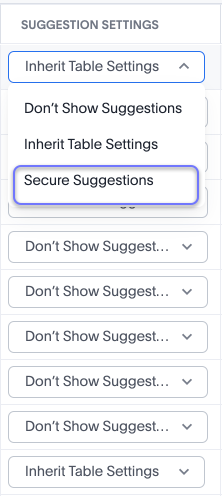
The Suggestion settings column offers three options:
-
Don’t show suggestions: The model column’s values never appear in typeahead suggestions or column knowledge cards.
-
Inherit table settings: The model column takes the suggestion security setting defined on its source table.
-
Secure suggestions: ThoughtSpot fetches the model column’s values on demand and filters them to the rows each user is permitted to query.
When you set a model column to Inherit table settings, the setting inherited from the source table applies everywhere the values are used, not only in typeahead suggestions and column knowledge cards. The data is secure only when the row-level security rule is defined on the same table that contains the referenced column. If the rule is defined on a different table in the Model, the values of the column that has no RLS rule can still appear in suggestions, because the pre-built index on that table does not traverse the JOIN to apply the restriction from the other table.
We recommend setting model columns with sensitive data to Secure suggestions.
A model column’s Suggestion settings and the index on its underlying table column are two separate controls:
-
The index on the table column determines which values ThoughtSpot pre-indexes and can offer as suggestions.
-
The Suggestion settings on the model column determine whether those values are filtered for each user at query time.
Setting a model column to Secure suggestions disables typeahead suggestions in Search Data. ThoughtSpot fetches values for Spotter and samples on demand by applying the relevant filters, so values may take a moment to appear on the initial operation.
Prerequisites
For secure suggestions to work, the following conditions must be met:
-
Row-level security must be applied to the underlying table. Row-level security rules are defined on tables, not on Models.
-
The model column must be set to Secure suggestions in the Suggestion settings column, rather than Inherit table settings or Don’t show suggestions.
For secure match, which makes Spotter suggestions strict-RLS compliant, the following additional condition applies:
-
The underlying table column’s index type must be set to Default. This applies only to secure match (
SECURE_MATCH_VALUES). Sample values (SECURE_SAMPLING) do not require the underlying table column to be indexed, and continue to flow to Spotter and to column knowledge cards.
Suggestion settings
To change the suggestion settings for a model column, follow these steps:
-
Open the Model you plan to modify, and make sure you are on the Columns tab.
-
Scroll across the column settings until you reach Suggestion settings.
-
For the desired model column, select Secure suggestions from the drop-down.
-
Click Save changes.
When to use secure suggestions
Set a model column to Secure suggestions when any of the following apply:
-
Row-level security is applied to some of the underlying tables, and you need value suggestions or sample values to honor strict row-level security.
-
The row-level security rules use constructs that the standard index cannot handle, such as
and,ts_var, or!=. -
Spotter accuracy matters on Models whose underlying tables have row-level security. Secure match makes Spotter suggestions strict-RLS compliant.
-
The underlying table has no index, but you still want secured sample values or suggestions.
Example: When a JOIN makes Secure suggestions necessary
Consider a model built from two Snowflake tables:
-
ORDERS: contains order details. An RLS rule restricts each user to their own region’s orders. -
PRODUCTS: a global lookup table of product names. No RLS rule is applied toPRODUCTS.
The model joins ORDERS to PRODUCTS.
Scenario 1: Secure suggestions needed
A model column sourcing PRODUCTS.product_name is indexed for Spotter suggestions. Even though PRODUCTS itself has no RLS rule, the rows visible through the join are already scoped by the ORDERS RLS rule. Without Secure suggestions, Spotter could surface product names from orders the user cannot see. In this case, enable Secure suggestions on this model column.
Scenario 2: Secure suggestions not needed
A model column sourcing PRODUCTS.product_category is a global classification (for example, "Electronics", "Clothing"). Every user sees the same categories regardless of their RLS context. Enabling Secure suggestions here generates unnecessary SECURE_SAMPLING queries. Set this model column’s suggestion type to Inherit table settings or Don’t show suggestions instead.
|
Inherit table settings inherits the suggestion security setting from the source table and applies it everywhere, not only in typeahead or knowledge cards. |
When not to use secure suggestions
Do not set a model column to Secure suggestions in the following cases:
-
No row-level security is applied to the underlying tables.
-
Row-level security is applied directly to the source table and the standard index already secures it.
-
You are enabling it on every model column of a Model without evaluating each model column’s security requirements. Enabling it indiscriminately generates unnecessary warehouse queries with no security benefit.
-
Suggestions are not needed for the model column at all. Use Don’t show suggestions instead.
|
Setting Secure suggestions on model columns that do not require it increases query load on your primary warehouse. Use this option only on model columns where row-level security compliance for suggestions is required. |
If the volume of SECURE_SAMPLING queries is higher than expected, audit each model column configured with Secure suggestions. If the source table has no RLS rule and is not joined to a table with an RLS rule, set the model column’s suggestion type to Inherit table settings or Don’t show suggestions to eliminate the unnecessary SECURE_SAMPLING load.
Secondary warehouse and secure suggestions
ThoughtSpot supports routing background indexing queries (SAGE_INDEXING, ROW_COUNT_STATS) to a secondary warehouse using connection configurations. Secure suggestions queries (SECURE_SAMPLING, SECURE_MATCH_VALUES) are not eligible for this routing.
Secure suggestions queries are user-generated and must return quickly. ThoughtSpot cannot guarantee that latency on a secondary warehouse. Secondary warehouses are typically used to run background queries during a specific time of day to reduce warehouse cost. For this reason, the secondary warehouse configuration does not apply to SECURE_SAMPLING or SECURE_MATCH_VALUES.
Because these queries always run on your primary warehouse, they consume compute on that warehouse rather than on a smaller, lower-cost one. On Models where many model columns are set to Secure suggestions, this can be a noticeable share of warehouse usage.