After migrating to IAMv2
Depending on your configuration, you will need to complete the following after migrating to IAMv2. For an overview of IAMv2, see Identity and Access Management (IAMv2).
Customers with only local accounts
After migration, local user accounts will be successfully migrated.
-
Please notify your ThoughtSpot users that they will be prompted to enter their username and password after migration.
If MFA is configured, users will be prompted to complete two-factor authentication. If users forget their username that is required for the Forgot Password workflow they will not be able to reset their password. -
To validate local account migration, create a user in ThoughtSpot and validate that user creation is successful.
Customers with SAML and local accounts
After migration, authentication will continue as normal for customers with IAMv1 configured. Complete the following steps to migrate to IAMv2.
| Until you complete these steps, your SAML configuration is read-only, and you will be unable to edit this configuration. |
-
From the drop-down at the top right side of the navigation bar, select the Admin tab.
-
Select Authentication > SAML from the left side navigation pane.
The following displays:
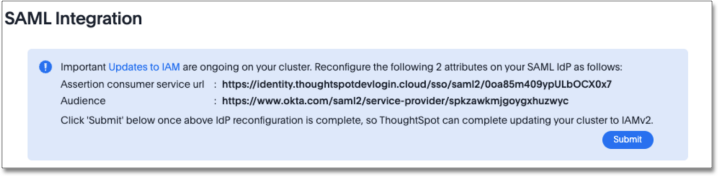
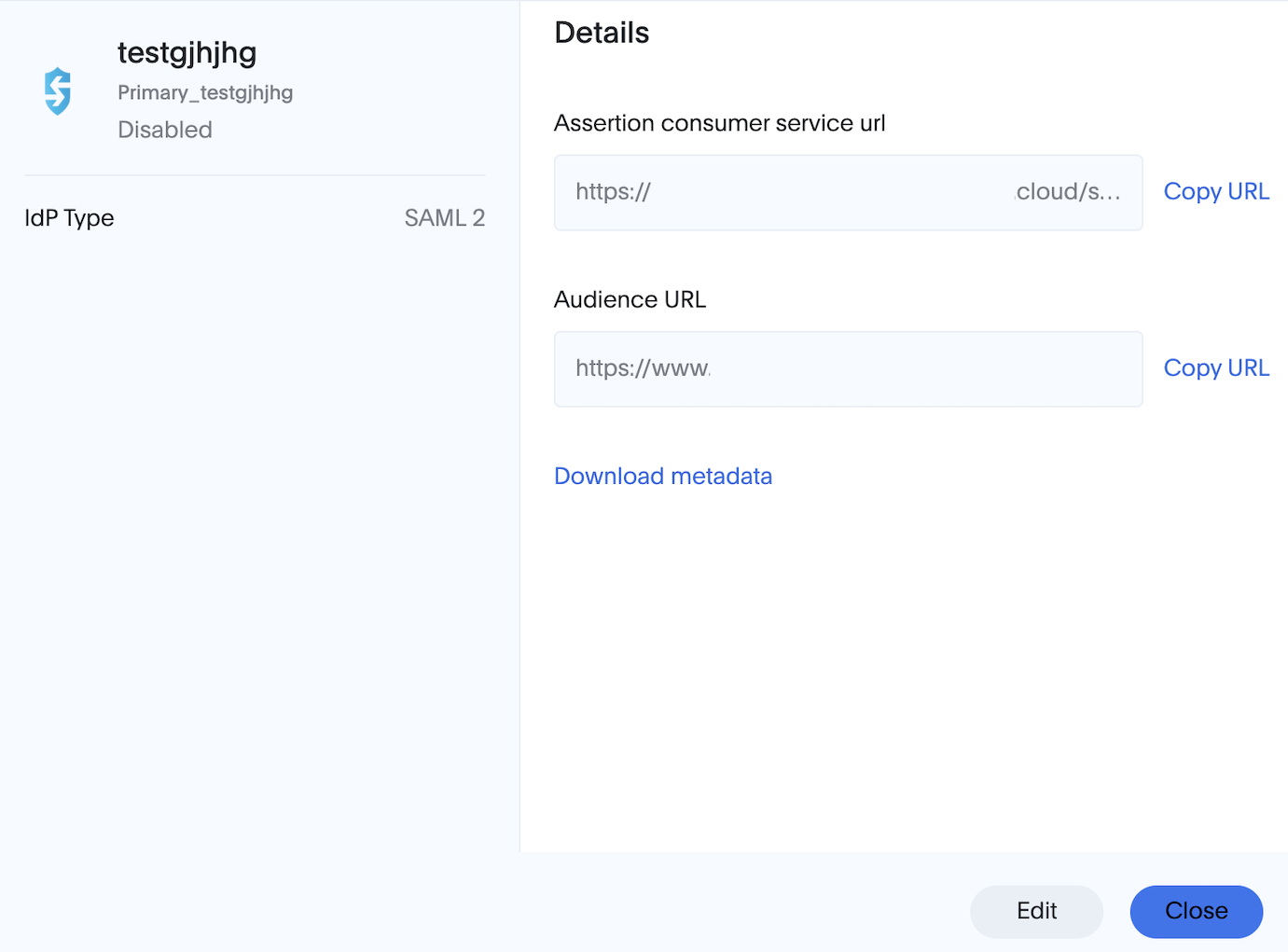
If you have the new Admin portal settings enabled, select User management > Authentication. The Authentication UI will be like the following:
-
Check the expiry date of your IdP signing certificate.
If the certificate has already expired, renew it before you update any of the values that follow. If it has not expired, continue to the next step.
-
Request that your IdP administrator configure the following attributes for ThoughtSpot to the values displayed.
-
Assertion Consumer Service URL (Single Sign On URL on IdP)
-
Audience (EntityId on IdP)
-
-
Re-upload the IdP certificate in your ThoughtSpot SSO configuration.
Depending on your IdP settings, changes to the Assertion Consumer Service URL and Audience can affect the certificate. Re-uploading it ensures the certificate remains valid and aligned with the new configuration.
-
Verify that the SAML attribute mappings in ThoughtSpot are exactly as intended, then save the configuration.
With IAMv2, the SAML response must have an email attribute. Ensure the email is being sent via SAML response and the email attribute are mapped correctly in Edit SAML connection > Map attributes. -
Click Submit when the configuration on your IdP is complete.
This reloads the service. Your configured SAML URLs will now appear on the page.
-
Optionally, you can add a cluster URL in your SAML application as default relay URL.
Changes to expect after migration
You can now map certain Identity Provider (IdP) attributes from the ThoughtSpot Admin Console when configuring OIDC or SAML authentication. These attributes include the username, email, and display name. For more information, see Managing authentication with SAML using IAMv2 and Managing authentication with OIDC using IAMv2. After you configure OIDC or SAML authentication, only Okta interacts with your IdP. Your ThoughtSpot cluster does not directly interact with your IdP.
The users section of the Admin Console now supports account activation monitoring. If a user still needs to activate their account, administrators can see that information in the Users section and re-send their activation email. For more information, see Create, edit, or delete a user using IAMv2.
Local users now create their own password during activation. Administrators do not create the password prior to activation. For more information, see Activate your ThoughtSpot account using IAMv2.
Note that whenever you navigate to the login page for ThoughtSpot, you will temporarily see the following URL: identity.thoughtspot.com. This is an expected part of the IAMv2 login experience.
| After migrating to IAMv2, usage of space and special characters will not be allowed while creating Orgs. This is to keep Org names DNS compliant. This restriction applies to only new Org names where per Org subdomain is enabled, and does not impact existing Orgs. |