Spotter starter prompts
You can now add potential first search options-- quick searches with preselected questions, deep analyses, or data knowledge prompts-- to guide first-time users of Spotter. These questions are specific to the data model you search on, and you can decide to use AI-generated prompts, or to write your own. These prompts appear below the search bar when you open Spotter.
Note that you can also access the Know your data tab below the search bar. This prompt leads Spotter to give you an overview of the Model data. This prompt is fixed and cannot be edited by users.
Create starter prompts
There are two types of starter prompts you can generate on a Model, quick search prompts, and deep analysis prompts. Quick search prompts are simple questions to get a conversation started, and deep analysis prompts are more in-depth example questions.
Users with edit access or coaching access to a Model can create or edit starter prompts on that Model.
To create starter prompts:
-
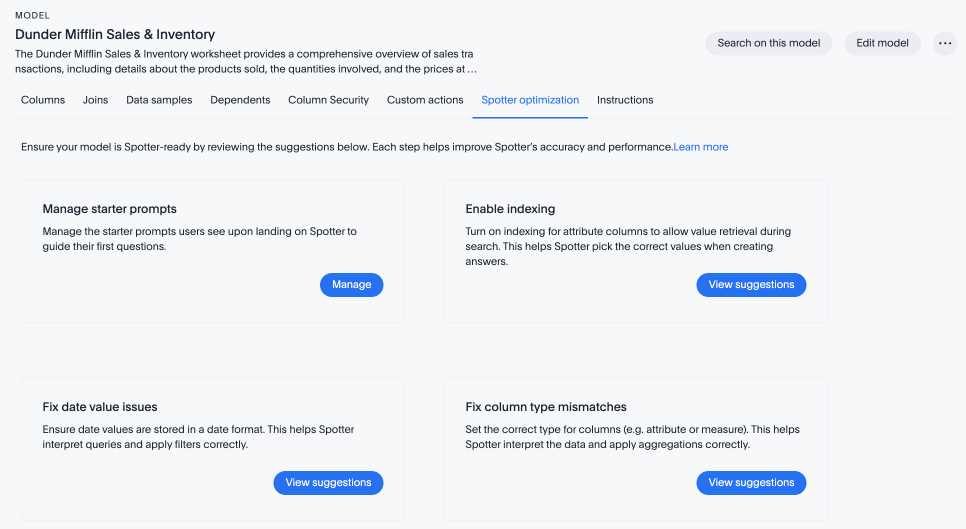
Navigate to the Model in the Data workspace. If you have access to create starter prompts on the Model, you will see the Spotter optimization tab. Click Spotter optimization.
-
Select Manage under Manage starter prompts.
-
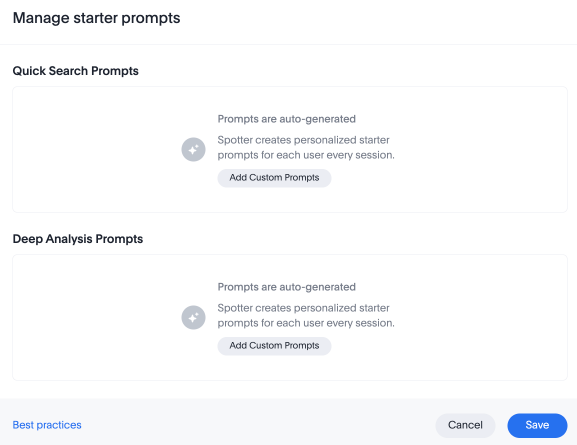
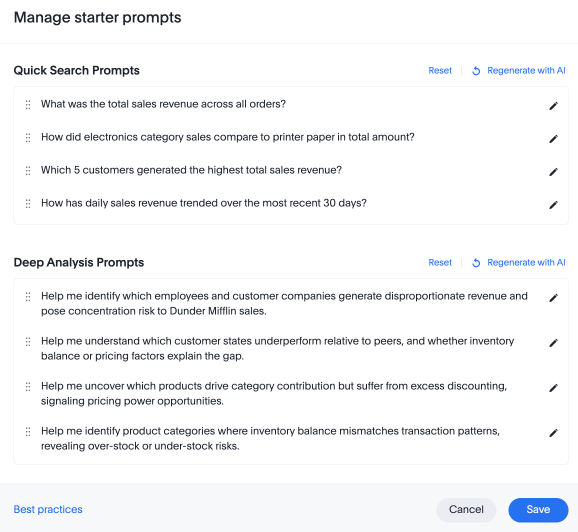
The Manage starter prompts interface appears. Select Add Custom Prompts under Quick Search Prompts.
-
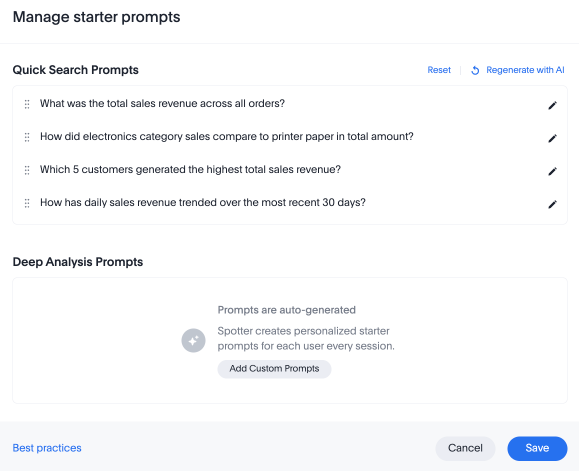
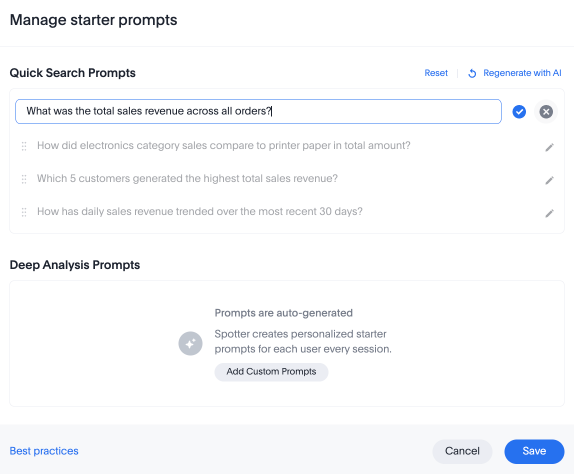
Four AI-generated quick search prompts appear. You can select Regenerate with AI to see different suggestions, or click the edit icon next to a prompt to write your own prompt.
-
If you’re happy with your quick search prompts, select Add Custom Prompts under Deep Analysis Prompts.
-
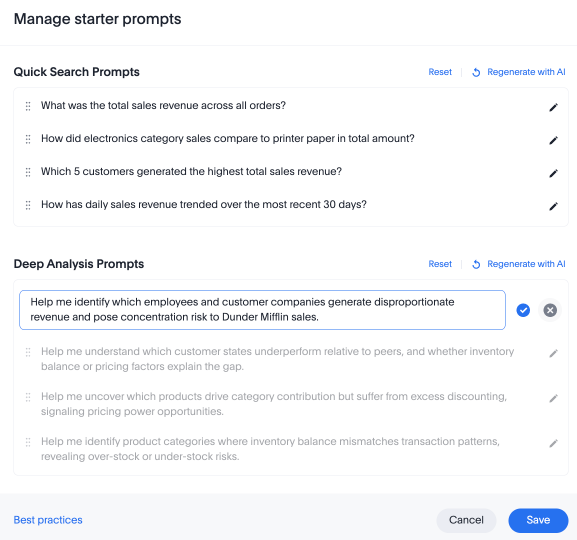
Four AI-generated prompts appear. You can regenerate with AI to see new suggestions, or click the pencil icon to edit the questions.
-
If you’re satisfied with your prompts, click Save.
-
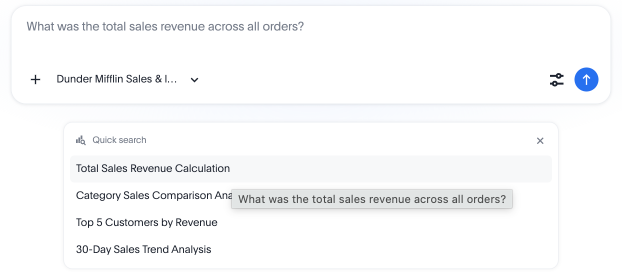
To test if your prompts are live, navigate to Spotter, select the Model you edited, and click the Quick Search or Deep Analysis tabs below the search bar.
Security
AI-generated prompts respect row-level and column-level security, and will not suggest questions to users without access to the data.
User-generated prompts may suggest data to users that they do not have access to. If you, for example, set a prompt that suggests users search for “What are the sales in the West region?”, and a user with access to only the East region selects the prompt, they can see the question, but ThoughtSpot will not deliver information they do not have access to. The question will fail, or will show no data.