Connect to Azure SQL Database in Analyst Studio
To connect your Microsoft Azure SQL instance, you must grant Analyst Studio access to your database.
-
Log in to your Azure account and select SQL Databases from the left navigation.
-
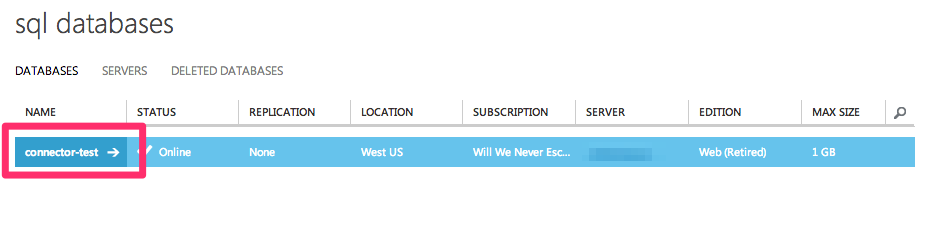
Select the SQL database you would like to connect.
-
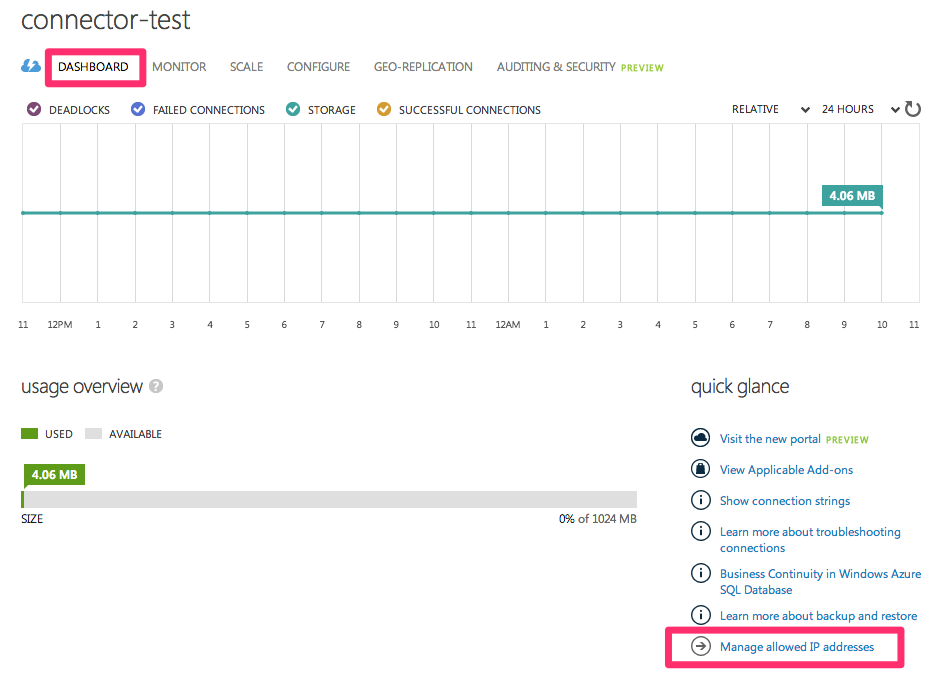
Click the Dashboard link at the top of the page and click Manage Allowed IP Addresses.
-
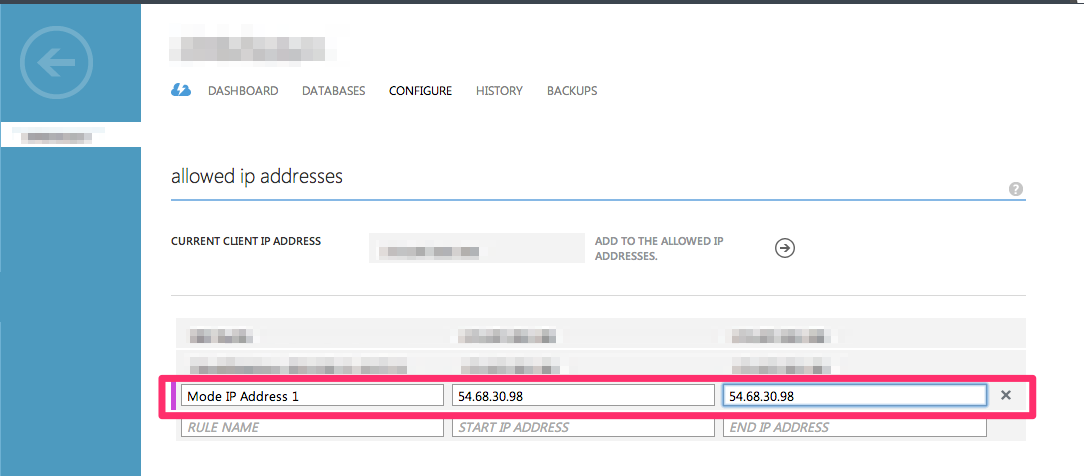
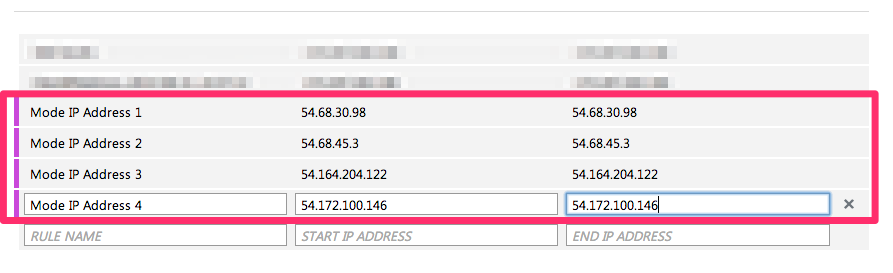
Add a new rule for Analyst Studio’s IP address using the following information:
-
Rule Name: Mode 1
-
Start IP Address:
54.68.30.98 -
End IP Address:
54.68.30.98
-
-
Add a rule for the remaining seven Analyst Studio IP addresses:
-
54.68.45.3 -
34.209.23.118 -
54.188.241.100 -
52.43.195.103 -
3.224.146.111 -
54.221.238.89 -
52.20.173.236
-
-
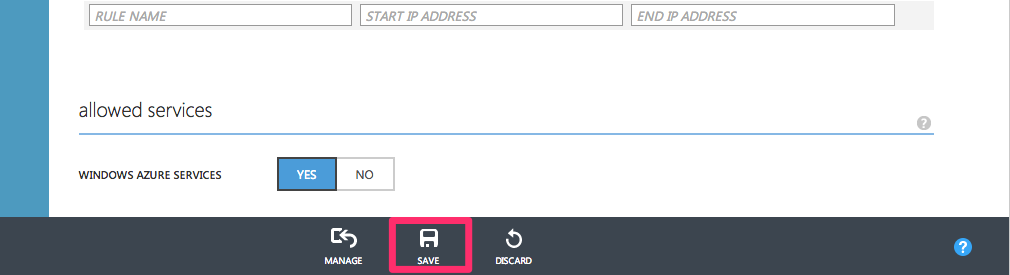
Click Save at the bottom of the screen.