User-defined column aliases
User-defined column aliases let you define custom names for data columns in ThoughtSpot — tailored to different audiences, languages, teams, or tenants — without changing the underlying data model.
ThoughtSpot models often include generic user-defined field (UDF) columns — for example, UDF1, UDF2 — whose meaning varies depending on which organization or client group is accessing the data.
UDF column aliases let you map these generic column names to meaningful display names for each audience, without duplicating the underlying Model.
For example, UDF1 might display as Region for one client group and Department for another — all from a single shared Model.
How column aliases work
An alias is a display name that ThoughtSpot resolves at query time based on one or more of the following criteria:
| Criteria | Description |
|---|---|
ThoughtSpot group |
The group or groups the user belongs to in ThoughtSpot. |
ThoughtSpot Org |
The Org the user is accessing ThoughtSpot from. |
User locale |
The language/region setting associated with the user (for example, |
At least one criterion must be specified for each alias definition.
You can combine criteria in a single row.
Use TS_WILDCARD_ALL in any criterion column to indicate that the alias applies regardless of that criterion’s value.
Alias resolution order
When a user searches or views a Liveboard, ThoughtSpot evaluates alias definitions and applies the first matching alias found for that user. If a user belongs to multiple groups that each have an alias defined for the same column, no alias is applied and the default model column name is shown instead.
Scope and restrictions
-
Alias definitions can only be created and managed in the owning Org. You cannot create, download, or delete alias definitions from a published Org.
-
The maximum number of aliases per cluster is 500,000.
-
Aliases apply to column display names and descriptions. They do not apply to column names shown in the model editor — the base column name is always shown there.
-
Spotter support for UDF column aliases is not available in this release.
Define aliases
You can define UDF column aliases using any of the following methods:
CSV upload
Prepare a CSV file with the following columns.
The Locale, Org, and Group columns are optional but at least one must be present and populated.
| Column | Required | Description |
|---|---|---|
|
Yes |
The base column name as it appears in the Model. |
|
No |
A BCP 47 language tag, for example |
|
No |
The ThoughtSpot org name. Use |
|
No |
The ThoughtSpot group name. Use |
|
Yes |
The alias to display for users matching these criteria. |
|
No |
An optional alias for the column description. |
Example: group-based aliases
The following CSV defines different display names for the UDF1 column based on the client group:
column,locale,org_name,group_name,alias,description
Quantity,TS_WILDCARD_ALL,TS_WILDCARD_ALL,group1,Quantity_group1,grp1-quantity
Example: group and locale-based aliases
The following CSV combines group membership and locale to define localized display names:
column,Locale,org_name,group_name,alias,description
revenue,TS_WILDCARD_ALL,TS_WILDCARD_ALL,group1,col_group1,Revenue for group1
revenue,de_GE,TS_WILDCARD_ALL,group1,col_german,Revenue for de_GE
revenue,TS_WILDCARD_ALL,TS_WILDCARD_ALL,group2,col,Revenue for group2
revenue,TS_WILDCARD_ALL,TS_WILDCARD_ALL,group3,col_group3,Revenue for group3
revenue,TS_WILDCARD_ALL,TS_WILDCARD_ALL,group4,col_group4,Revenue for group4
discount,de_GE,TS_WILDCARD_ALL,group1,Discount_german,Discount for group1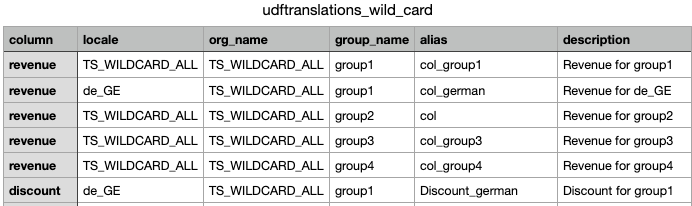
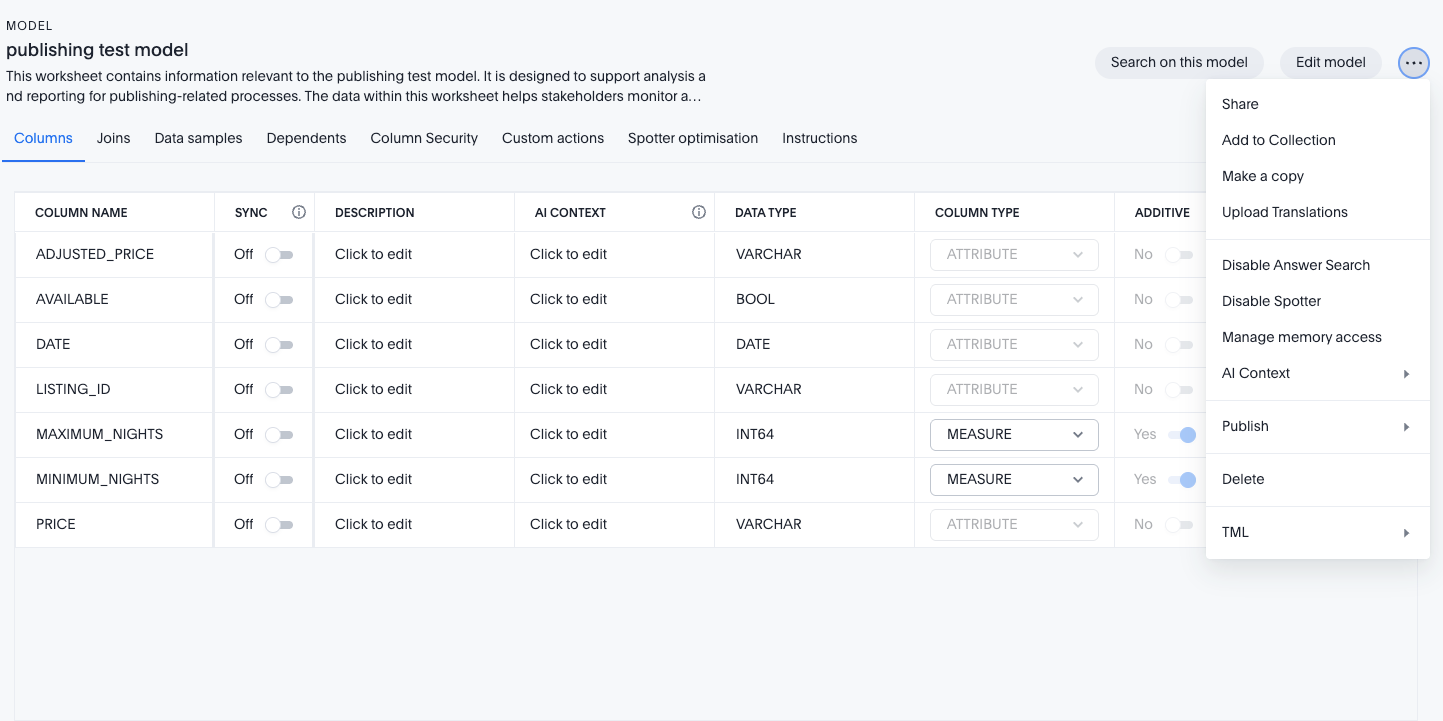
To upload a CSV file:
-
In ThoughtSpot, open the Model you want to add aliases to.
-
Select the More icon and click the Upload translations tab.
-
Select Upload CSV.
-
Select your CSV file and confirm the upload.
TML import and export
Alias definitions are stored as a separate TML object associated with the Model, not embedded within the Model’s TML file itself. You can download, edit, and re-upload alias definitions using TML APIs or the Model editor.
Typical workflow:
-
Maintain alias definitions in a source database table.
-
Write code to generate TML from that table.
-
Use the ThoughtSpot TML REST API to upload the alias definitions to the Model.
-
Optionally, load the database table as a ThoughtSpot table to provide a UI for reviewing alias definitions.
Monitor alias usage
Use the REST API to check how many aliases are defined in your cluster and on individual Models.
Fetch alias count
GET /api/rest/2.0/metadata/translations/fetchAliasDetails
| Parameter | Type | Description |
|---|---|---|
|
String |
GUID of the Model to query. If omitted, returns counts across all Models in the cluster. |
|
Boolean |
When |
Example response
{
  "status": {
    "code": "OK"
  },
  "total_count": 550,
  "translation_counts": [
    {
      "model_name": "Sales Model",
      "guid": "4da3a07f-fe29-4d20-8758-260eb1315071",
      "aliases_count": 150
    },
    {
      "model_name": "Finance Model",
      "guid": "9ab1c23e-ab12-5e31-9869-371fc2426182",
      "aliases_count": 200
    }
  ]
}
Access to this API requires the user to have edit access to the specified Model and either the DATAMANAGEMENT or CAN_MANAGE_WORKSHEET_VIEWS_TABLES privilege.
Limitations
-
Aliases apply to Search Data and Liveboards. They do not currently apply to Spotter natural language queries.
-
Aliases are not shown in the Model editor — the base column name is always displayed there.
-
If a user belongs to multiple groups that each define a different alias for the same column, the base column name is shown (no alias is applied).
-
Alias definitions can only be managed from the owning Org. Published Orgs cannot create, modify, or delete alias definitions.
-
Partial CSV updates are not supported. A full upload replaces the existing alias definitions.
-
Alias synonyms, worksheet parameters, and set-level aliasing are not supported.
-
The maximum alias count per cluster is 500,000.