Migrating Snowflake connections from Service Account to Key Pair authentication
Snowflake is blocking sign-in with a password alone, in phases. The final phase runs from August to October 2026, and Snowflake schedules it per account; see Snowflake’s MFA rollout. Move Snowflake connections that use a username and password to Key Pair, Personal Access Token or OAuth before your account’s date.
If you use a Personal Access Token, Snowflake requires a network policy on the service user that allows ThoughtSpot’s IP addresses.
To migrate from Service Account to Key Pair authentication, follow these steps:
-
Follow this guide to generate key pair values. ThoughtSpot supports both encrypted and non-encrypted keys.
-
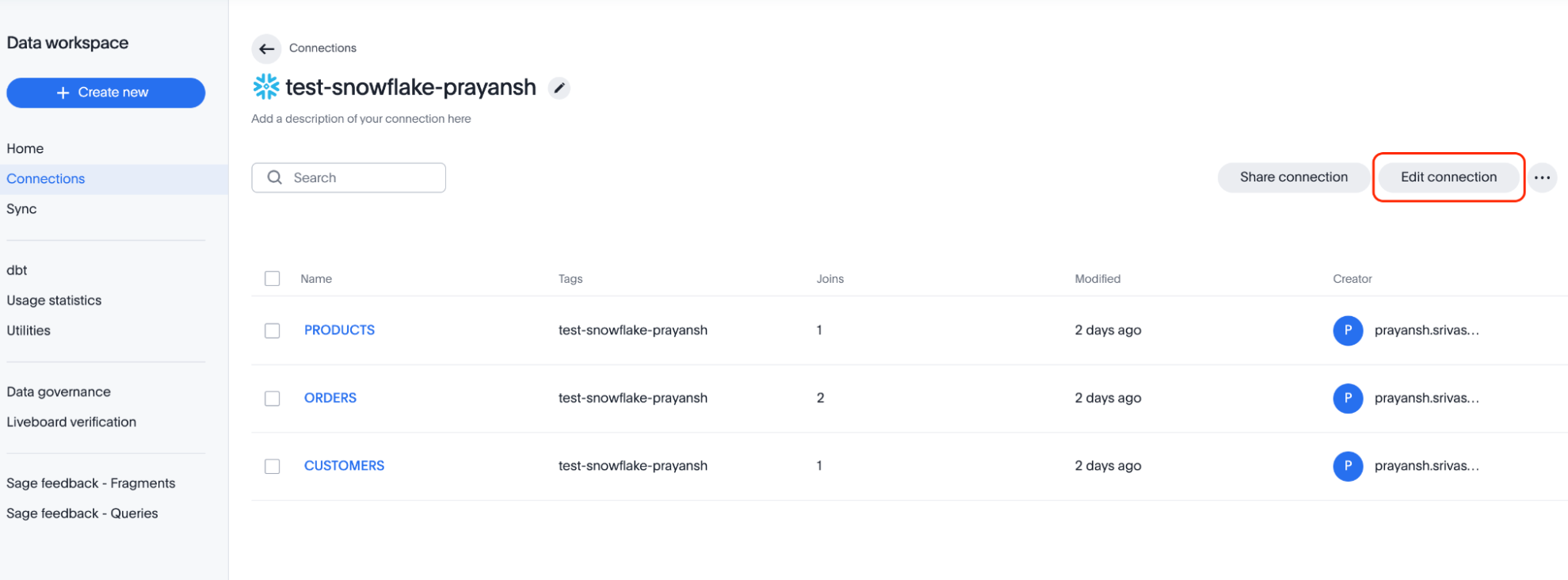
Navigate to the Data workspace and select Connections from the left menu. Select the desired Snowflake connection that is currently authenticated using a password-based service account.
-
Select Edit connection.
-
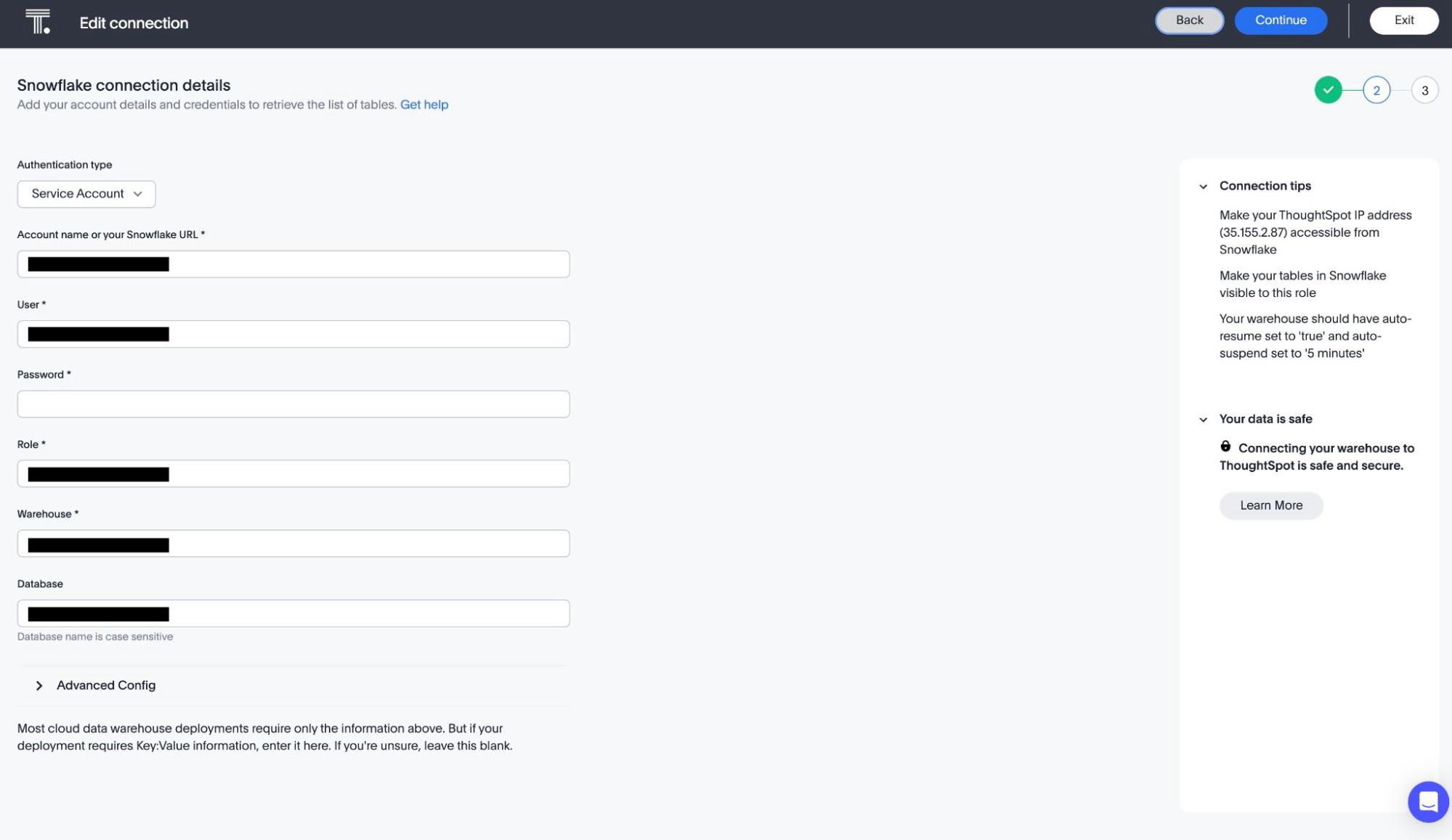
The Snowflake connection details page appears.
-
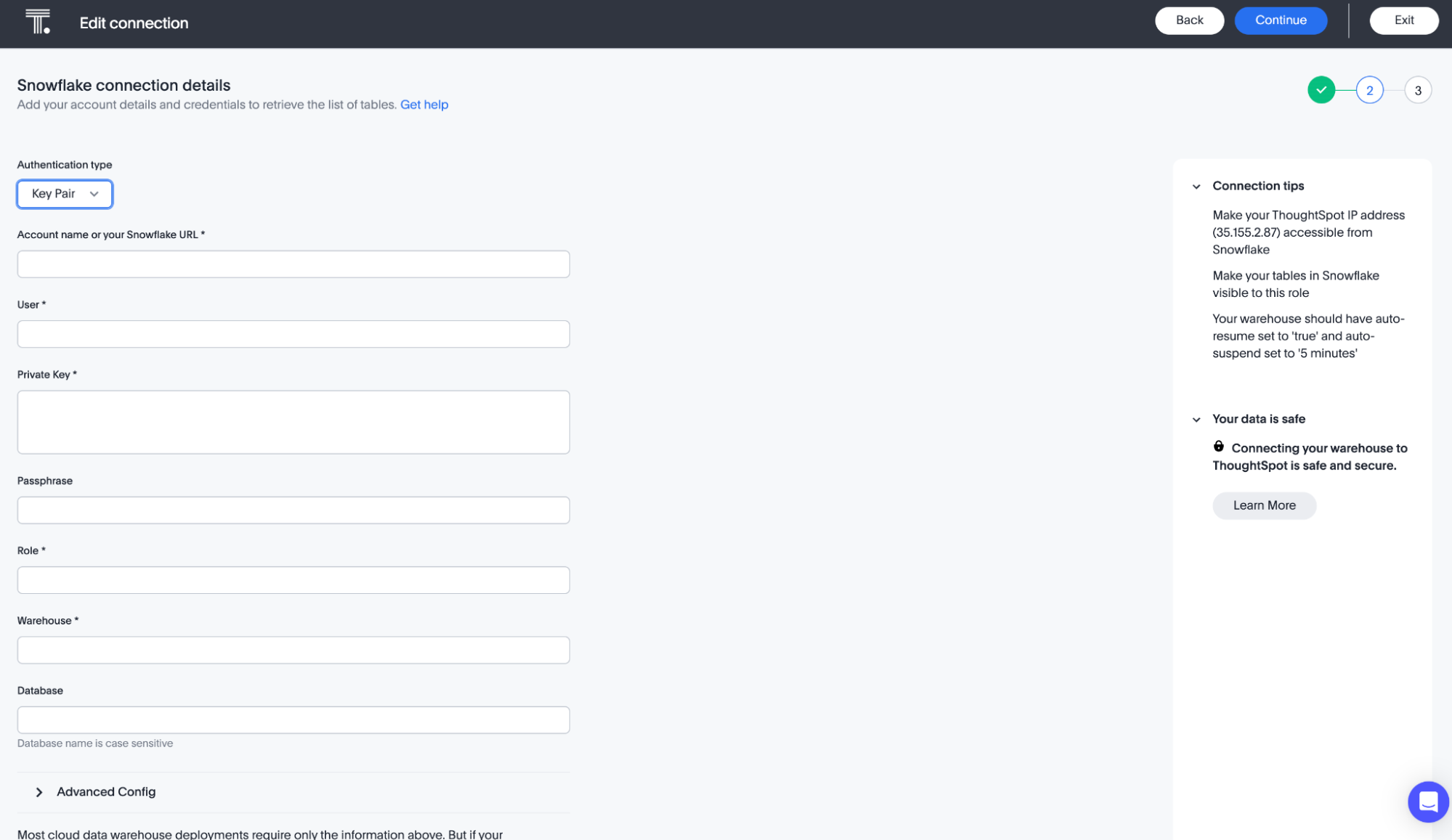
Click Service Account and select Key Pair from the dropdown.
-
Enter the required authentication details:
-
Account name
-
User (Enter the recently created service account user.)
-
Private key (Reference the rsa_key.p8 file you created in Snowflake. Include the private key delimiters.)
-
Passphrase (Mandatory if your key is encrypted.)
-
Role
-
Warehouse
-
Database
-
-
Click Continue, then click Save.