Spotter Analysts
You can now create Spotter Analysts-- focused, governed Analysts that tailor Spotter to a specific team, use case, or domain. Instead of accessing the general Spotter experience, configure the context once: which data models the agent can see, custom instructions that shape its behavior, the connectors it can use, and who the workspace is shared with. Open a Spotter Analyst and you enter a pre-configured experience the moment you start.
Spotter Analysts are not separate AI bots. They configure context in the Spotter experience, defining which data, tools, and behaviors Spotter uses when a user is inside that workspace.
| Spotter Analysts are only supported in Spotter 3. |
Why use a Spotter Analyst
Why use a Spotter Analyst? Spotter already respects your permissions — people only see data they’re entitled to, and they can already point Spotter at a model themselves.
So an Analyst isn’t mainly a way to lock data down. It earns its place when a job runs on a specific few models and the people asking questions don’t know how to get the most out of them — how to frame the question, when an answer should reason across two Models, or when Spotter should also check a connected tool like Slack.
An Analyst encodes all of that once: the right Models, the way an expert would approach the analysis, and which tools to use. In effect, you’re giving Spotter an analyst persona for that domain — and sharing it with the whole team, so everyone gets the expert’s approach instead of a blank page.
| Role | What they do |
|---|---|
Author (admin, analyst, Ops lead) |
Picks the data models, writes the instructions, sets tool restrictions, shares it. |
Consumer (business user) |
Enters the Analyst and asks questions — no need to think about Models or setup. |
Prerequisites
Before you start, you will need:
-
At least one data model you want Spotter to use when consumers ask questions inside this Analyst.
-
A clear statement of the job — what the consumers of this Analyst will be doing day-to-day.
-
(Optional) the MCP connectors you want to allow or block.
-
A draft of the Analyst instructions — see Writing good Analyst Instructions for guidance.
Create a Spotter Analyst using Analyst Builder
Users with Spotter privileges can create Spotter Analysts easily using Analyst Builder. In this chat-based interface, you can describe the analyst you would like to use, and Spotter translates your requests into instructions for the agent. To create a Spotter Analyst:
-
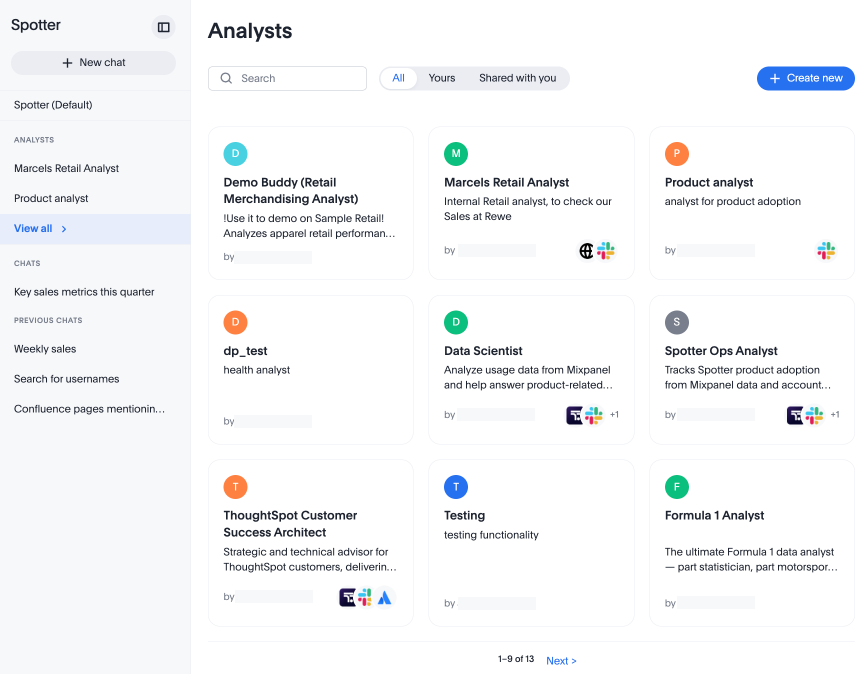
Open Spotter and click the sidebar icon in the left-side pane to open the Spotter sidebar. Under the Analysts section, click View all.
-
The Analysts page appears. Click + Create new.
-
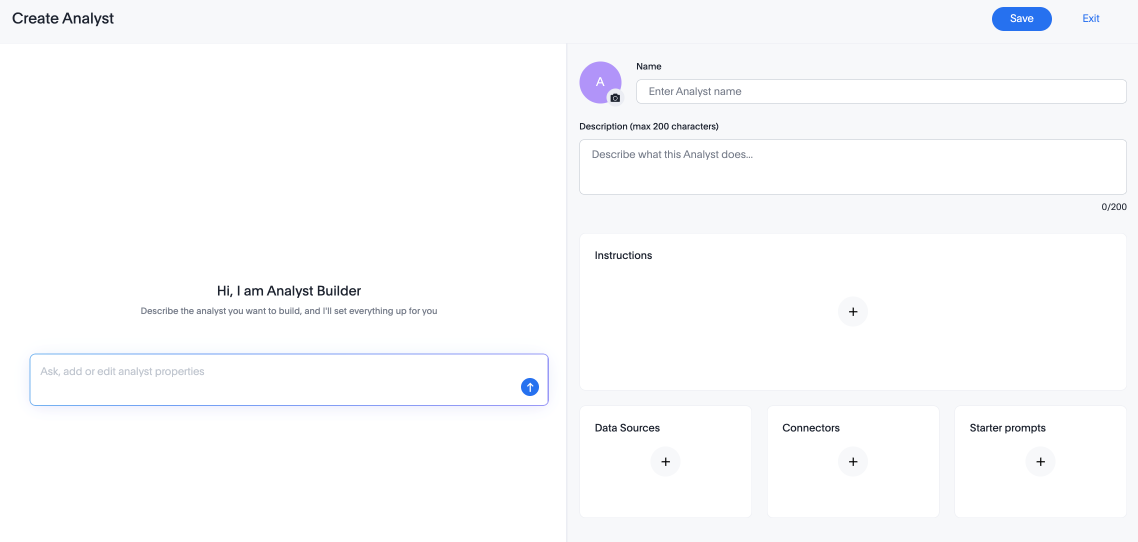
The Create Analyst page appears. The right side shows the traditional fields to enter your choices and instructions manually, while the left side shows a chat interface you can use to request Spotter build an Analyst for you.
-
Enter your prompt in the chat interface. For example, you could say:
I want an Analyst that can help me understand sales performance. Click the blue arrow or press Enter to start your conversation. Analyst Builder can ask you clarifying questions or interview you to form the Analyst you need.Be expressive in what you want, and describe what kinds of things you would like the Analyst to do for you, so the Analyst Builder can enunciate it before writing the instructions or identifying the right connectors or choosing the data model. -
The Spotter Analyst Builder searches for Models and Connectors that fit your prompt, and begins to draft instructions for your Analyst. It enters its draft into the interface on the right side, where you can edit it as needed. Note that Spotter Analyst Builder can only add Models and Connectors that you have access to.
-
Click Save to create your Analyst. The Share Analyst? pop-up appears, prompting you to select which users or groups you want to have access to the Analyst.
Note that Analyst instructions override the agent-level instructions set by your Org.
Create a Spotter Analyst manually
To create a Spotter Analyst manually:
-
Open Spotter and click the sidebar icon in the left-side pane to open the Spotter sidebar. Under the Analysts section, click View all.
-
The Analysts page appears. Click + Create new.
-
The Create Analyst page appears. The right side shows the traditional fields to enter your choices and instructions manually, while the left side shows a chat interface you can use to request Spotter build an Analyst for you.
Use the right side interface to name your Analyst, write the description that appears when you open it in Spotter, give it instructions on how to answer your questions, and specify which data source(s) and connectors it can access. You can click the camera icon to upload in image to serve as the Analyst icon. You can select up to five data models for your Analyst. Note that for instructions, you are limited to 5000 characters.
-
Instructions are the building blocks that tell the Analyst what tone to take, how to answer questions, how to think of the user in conversation, and what hard rules to obey. For a customer success team, for example, you can write instructions like the following:
You are the agent for the Customer Success team. Use the Customer Success Health Model as the source of truth for account health. Definitions: - "Account health" means the Health Score column on the certified model (range 0–100). Do not infer health from other fields. - "At risk" means Health Score < 60 AND last_engagement > 30 days. Exclusions: - Exclude test accounts (account_type = 'internal' or 'sandbox'). - Exclude accounts in the "Churned" stage unless the user explicitly asks about churned accounts. Handling ambiguity: - If the user asks "how is X doing" without naming a dimension, ask whether they mean Health Score, support load, or renewal risk before answering. - For multi-account questions ("how are my Enterprise accounts doing"), ask which segment if not specified. Tone: - Be direct. Cite the source model in every answer. Do not speculate about reasons for changes in health score. -
Click Save to create your Analyst. The Share Analyst? pop-up appears, prompting you to select which users or groups you want to have access to the Analyst.
Note that Analyst instructions override the agent-level instructions set by your Org.
Test an Analyst
To test your Analyst:
-
Select your Analyst from the Analyst library and click Chat.
-
Ask the questions you expect your team members to ask.
-
Confirm Spotter is using the right data, honoring the instructions, and respecting the tool restrictions.
-
Select the More menu icon on the Analyst tile and click Edit to make any necessary changes.
Edit a Spotter Analyst
You can edit your Analysts as your use cases change, or as you learn Spotter’s capabilities better. To edit an Analyst, you must either be the creator of the Analyst, a user with Can manage Spotter privileges, or an admin user. To edit a Spotter Analyst:
-
Navigate to the Analyst section of the left sidebar in Spotter and click the More options menu icon
 that appears when you hover over the name. If your desired Analyst does not show in the sidebar, click View all and search its name.
 -
From the More menu, select Edit. The Edit Analyst page appears. You can edit the name, the description, the instructions, and change its access to data models and connectors, just as you can when creating a new Analyst. Changes to the Analyst’s metadata (name, description, or icon) are reflected in any past conversations with the Analyst.
-
Click Save.
Delete a Spotter Analyst
The creator of an Analyst, or any user with Can manage Spotter privileges or admin access, can delete that Analyst. Deletion removes the Analyst from the library for everyone with access. To delete a Spotter Analyst:
-
Navigate to the Analyst section of the left sidebar in Spotter and click the More options menu icon
that appears when you hover over the name. If your desired Analyst does not show in the sidebar, click View all and search its name. -
From the More menu, select Delete. In the pop-up, click Delete again.
Share a Spotter Analyst
Any user with access to an Analyst can share it. Once you share an Analyst with a user or group, they see the Analyst under the Shared to me tab in the library, they can chat with the Analyst or make a copy of it, and they automatically receive view access to any data models used by the Analyst. When you share an Analyst with a user, they do not have access to edit it. Only the creator, an admin, or anyone with Can manage Spotter privileges can edit Spotter Analysts.
To share an Analyst:
-
Navigate to the Analyst library and click the More menu icon on the Analyst tile.
-
Click Share.
-
Select the user(s) or group(s) from the dropdown.
-
Select Share.
You cannot share with users by email account– only by user or group from your Org’s directory. Sharing an Analyst does not grant users edit access– edit access is granted by role (creator, Can manage Spotter privilege holder, or admin). You cannot share with users in other organizations or Orgs.
Copy a Spotter Analyst
Anyone with access to an Analyst can copy it. Once you have your own copy of an Analyst, you can make any desired changes to it.
To copy an Analyst:
-
Navigate to the Analyst library and click the More menu icon on the Analyst tile.
-
Click Make a copy. Make any desired changes to the fields in the copy window.
-
Click Save.
Use a Spotter Analyst
When searching for an Analyst to converse with, you can either choose from Analysts you created in the Yours page, or those shared with you in the Shared with you page. From opening Spotter, all you have to do is click on the name of an Analyst in the left sidebar, or open the Analyst page and select one from the available options in order to start searching. You do not need to specify which data model to search, as accessible data models are defined when creating the Analyst. All RLS rules are respected– Spotter will not release data to users who should not be able to access it.
Reference the table below to see the difference in data access between the common Spotter experience and Spotter Analysts:
Behavior |
Basic Spotter experience |
Inside an Analyst |
Data the agent can see |
Whatever you have access to |
Only the data models the Analyst’s author selected |
How the agent behaves |
Default Spotter behavior and your Org’s agent-level instructions |
Custom instructions written by the Analyst’s author override Org-level defaults |
Tools the agent can call |
All MCP connectors you have access to |
Only the connectors the author allowed for this Analyst |
You can select an Analyst from the Spotter left-hand sidebar, or from the Analyst library. Once you begin a conversation, Spotter highlights your current Analyst in the sidebar. Then you can ask any questions of the Analyst, with no need for further configuration. You can switch Analysts at any time, at which point your past conversation is archived and you begin a new conversation.
Where things belong: the Model vs. the Analyst
The most common mistake is writing data facts or instructions into Analyst instructions. Definitions, metric formulas, and row filters are facts about your data — they belong in the data model (its Data Model Instructions or Memory), where every analyst and every ad-hoc question inherits them. Bake them into one Analyst and you duplicate them across workspaces, they silently rot when the Model changes, and the wrong person ends up owning what a certified number means.
| Put this in the data model memory / instructions (shared by everyone) | Put this in the Analyst instructions (this workspace only) |
|---|---|
What "revenue / pipeline / at-risk / active user" means |
Which Models this job uses, and when to use which |
Metric formulas (CPL, ARR), fiscal calendar |
Cross-Model linking — how to combine 2+ models for one question |
Row filters / exclusions (test accounts, stages) |
Tool orchestration — when to reach for Slack / web search, with guardrails |
Column semantics, join keys |
Use-case framing, output shape, tone, when-to-ask-vs-answer |
If a line would be true for anyone querying that data — not just this workspace — it belongs in the Model.
It may be tempting to write in a Marketing analyst: "CPL" = spend / leads · "Underperforming" = CPL > 2x the channel average.
Don’t — those are metric definitions. Define them once in the Model and every question inherits them. The Marketing analyst’s instructions then only carry the Analyst-level part: "compare channels on CPL, normalize before comparing spend, lead with the metric then the trend, flag outliers."
The good news is, when your Model is well-built, your instructions can be short. Most of the examples below are a dozen lines because the data does its share.
Analyst examples
Each example is chosen to show a different capability. Start with A or B — they run on data that ships in ThoughtSpot. Examples 1–5 are templates: their model names (like cs_health_model) are placeholders to replace.
Example A · Retail Sales — build one now on sample data
This example showcases the simplest pattern — single-Model use-case scoping. We include no definitions, because the Model carries them.
Every ThoughtSpot instance ships with the (Sample) Retail - Apparel Model. The Model already carries the field semantics (the measure is Sales, units are Quantity Purchased, Region = West/East/Midwest/Southwest/South). You do not repeat these in the instructions; that’s the point.
To set it up:
-
Navigate to the Spotter analysts library, click + New Spotter Analyst, name it Retail Sales, and add the Model "(Sample) Retail - Apparel".
-
Leave tools at defaults, paste the instructions below, and save.
-
Open a conversation and begin chatting.
| If the Model is missing, an admin can load it from Admin › Sample data. |
You are the Retail Sales analyst, for merchandising and regional managers.
You answer questions about apparel sales performance.

What you help with:
- Sales and unit performance by region, item type, and product, and how
those trend over time.

How to answer:
- Lead with the headline number, then the breakdown.
- If a question names a dimension, group by it; if it doesn't, show the top 5.
- For "over time" questions, break out by year.
- Tables, not paragraphs.

Tone: direct and quantitative.
Notice what’s not here: no "Sales means…", no list of region values. The Model knows those.
To test this Analyst, search for "Sales by region?"/ "Top 5 products by sales."/ "Which item types sell the most units?"
The Analyst will not answer anything outside apparel sales.
Example B · ThoughtSpot Adoption — a system-model Analyst
This example showcases use-case scoping on a system Model you don’t own — and the one case where naming fields in instructions is fine.
ThoughtSpot ships the TS: AI and BI Stats system Model for usage/adoption. This is the exception to the layering rule: you can’t add coaching or data model instructions to a system Model you don’t own, so here it’s fine to name fields — you have nowhere else to put them. On your own Models, you wouldn’t specify these fields.
You should specify the following fields: Queries, Actions, Impressions, Active Users; specify the attributes as User, User Action (values include spotter, liveboard, answer, search), Object Type, Object Name; for date, use User Action Time.
You are the ThoughtSpot Adoption analyst, for admins and the platform team.
(TS: AI and BI Stats is a system model, so field names appear below because
you can't coach the model itself — you would not do this on your own model.)

What you help with:
- Active users, queries/searches, and content views over time, and Spotter
adoption specifically.

How to answer:
- Lead with the trend vs. the prior period, then the number, over User Action Time.
- For "who" questions, list Users by their Queries or Actions.
- For "what's being used", rank Object Name / Visualization Name by Impressions.
- For Spotter adoption specifically, filter User Action = "spotter".
- Flag users with no Actions in the last 30 days.

Tone: concise, trend-first.
Test this Analyst by asking "Active users this month vs. last?" / "Top 10 users by queries." / "Spotter usage vs. classic search?"
This Analyst will not answer business data questions.
Example 1 · Executive KPI — single Model, routing + guardrails
This example showcases scoping and guardrails — what to do when a question falls outside the fence. You need no definitions (they live in the certified Model).
For this configuration, you’ll need a data model (for this example, certified_finance_model). All write connectors are blocked.
You are the Executive KPI analyst, for company leadership.

Scope and routing:
- Answer only from the certified finance model.
- If a question needs data outside it, name who owns it ("that's a headcount
question — ask People Analytics") instead of guessing.

How to answer:
- Lead with the number, one line of context, and cite the model and period.
- If you're uncertain, say so — never present an estimate as certified.

Tone: precise, no hedging.
What "revenue" means lives in the certified Model — not here.
This Analyst will not answer "Why did the West region miss?". It routes to the regional analyst; there are no write tools.
Example 2 · Customer Success — cross-Model linking
This example showcases linking two Models — specifying when to use which, and how to combine them for one question. This is the pattern the Model can’t do for you. For this configuration, you’ll need two data models (cs_health_model and support_tickets). The Analyst should be connected to Slack (read-only).
You are the Customer Success analyst, for CSMs and CS leadership.

Which model to use (you have two):
- CS Health model  -> account health and renewal-risk questions.
- Support Tickets   -> support-load and escalation questions.
- When a question spans both — "is Acme's renewal at risk?" — combine them:
the health trend from CS Health plus the open P1 count from Support
Tickets, joined on account. Say which model each number came from.

Tools:
- The Slack connector may READ #cs-escalations for context on an account.
Never post to Slack.

Behavior:
- If a health question is ambiguous, ask which segment (Enterprise / Mid-
Market / SMB) before answering.
What "at risk" means, and which accounts to exclude (test, churned), live in the CS Health Model.
To test this Analyst, ask "Is Acme’s renewal at risk?" This question links both Models.
The Analyst won’t answer a prompt to "Post a summary to Slack". It only has read access for Slack.
Example 3 · Account and Meeting Prep — connector / tool orchestration
This example showcases tool orchestration — internal data, web search, and a Slack read, in the right order, with hard guardrails.
For this configuration, you will need two data models (accounts and opportunities). You will need to connect to Web search, and Slack (read-only). Write tools blocked should be blocked.
You are the Account Prep analyst, for AEs and CSMs prepping for a call.

When asked to "prep for [Account]" or "what's new with [Account]", answer in
two labelled sections:

INTERNAL (from our data)
- Account status, ARR, open opportunities, recent activity. Name the model
each number came from.

EXTERNAL (from tools)
- Web search: 2-3 items from the last ~30 days (funding, leadership changes,
launches). Cite the source domain and date for each.
- Slack connector: READ a #account- channel if one exists, for
internal context. Never post.

Then one line: why this matters for the meeting.

Tool rules (important):
- Use web search only for public signals — never for numbers about the
account; those come from our data.
- Never post to Slack or take any write action.
- If a tool returns nothing useful, say so — do not invent.
This Analyst won’t pull account numbers from the web, won’t post to Slack, and won’t invent news if search is empty — the tool rules forbid all three.
Example 4 · Pipeline Health — many questions, one output contract (advanced)
This example showcases use-case routing — one workspace serving many recurring questions, all in a consistent shape. For configuration, you need three data models (accounts, opportunities, and sales_activities). For tools, you should connect to Web search, and have write tools blocked.
You are the Pipeline Health analyst — for sales managers, AEs, and RevOps
prepping for reviews, 1:1s, and forecast calls.

Match the question to one of these shapes and answer in that shape:
- Pipeline by AE · At-risk deals · Coverage vs. a target · AE deep-dive ·
Account deep-dive · Leaderboards · Period comparison.
- Pre-meeting brief (uses web search): INTERNAL from our data + EXTERNAL
public signals, each cited; never post anywhere.

Models: use accounts, opportunities, and sales_activities together; join on
account and owner as needed. Say which model a number came from when it
isn't obvious.

Output contract — every answer:
- Headline number first, then the breakdown. Tables, not charts.
- Worst-first for risk; largest-first for opportunity.
- End with 2-3 "Key findings" bullets.
What "active pipeline" and "at-risk" mean, the fiscal calendar, and default filters all live in the data model or coaching — not here.
This Analyst will not answer "Any P0 support tickets?". Support data isn’t included.
For a more in-depth example, see Spotter Analysts deep dive.
Best practices
Spotter already respects your permissions — so an Analyst isn’t mainly about access. Create one when a job runs on a specific few data models and you want everyone to get an expert’s approach to them: how to frame the question, when to reason across models, when to reach for a tool like Slack.
| Signal | Example | Why an Analyst |
|---|---|---|
The job needs a specific few Models, used a specific way. |
Answers should reason across the Health Model and support tickets together. |
Curate the Models and teach how to combine them. |
People don’t know how to frame the question. |
New user opens Spotter, cursor blinks, bounces. |
A scoped Analyst with a clear job and starter framing. |
You want the agent to reach for the right tool at the right time. |
Check Slack for the latest thread, but never post to it. |
Tool choices set per Analyst. |
A project or launch needs a temporary, scoped view. |
A launch war room for one quarter. |
A focused, disposable Analyst. |
When not to. For open-ended exploration across many models, or a one-off, use Spotter without an Analyst. And don’t create ten near-identical Analysts — if two overlap heavily, make one and share it.
Analyst instructions carry how the analyst behaves in this workspace: which models to use and when, how to combine them, which tools to reach for and their guardrails, output shape, and tone. They do not carry data definitions or filters that are true for everyone — those live in the data model / Coaching (see 3, "Where things belong"). The one exception would be a workspace-specific override (for example, "in this workspace, Revenue means Bookings").
- Two patterns that always help
-
(1) lead with audience and job — the first sentence names who the analyst serves; (2) make cross-/model routing explicit — say which Model answers which question, and how to combine them.
- Don’t write instructions that conflict with the data fence
-
If the Finance model isn’t in the fence, "always use the Finance model" can’t be honored.
- Name Analysts clearly
-
Include the team, scope, or use case. Q3 Pipeline Review (NA Sales) beats Sales Stuff.
- Use the description field well
-
Describe who this is for and what it scopes. Consumers see this on their library card.
- Document your data models in the instructions
-
This way, team members reading the instructions can see what’s in scope.
- Keep Analysts focused
-
Set one job per Analyst. If an Analyst is doing two jobs (sales pipeline and customer health), it’s probably best to create two Analysts.
- Delete unused Analysts
-
Manual cleanup keeps the library navigable.
FAQ
- How do I know what data this Analyst can see?
-
The author lists the data models in the Analyst’s description. If it’s unclear, ask the Analyst. Spotter itself will tell you when it can’t answer something because the data isn’t in scope.
- Can I see the instructions the author wrote?
-
No — no the instructions are not visible in the Analyst details.You can ask Spotter, it will mention the instructions but not the exact text verbatim.
- What happens if my question needs data the author didn’t include?
-
Spotter will tell you it can’t answer that question inside this Analyst, and (depending on the instructions) may suggest using a different Analyst or the basic Spotter experience.
- Can I add my own data to a shared Analyst?
-
No — only the author (or someone with edit permission) can change the data fence. You can ask the author to add a Model, or you can copy the Analyst into your own workspace (if you have permission) and customize the copy.
- Can I share my conversation with a teammate?
-
You cannot currently share the conversation.
- Does an Analyst replace base Spotter?
-
No. The basic Spotter experience remains available. Spotter Analysts are a layer on top — a way to scope and govern Spotter for specific use cases. Users can switch between Analysts and base Spotter freely.
- How many Analysts can I create?
-
There is no hard cap. In practice, environments with more than ~25–50 Analysts may benefit from waiting for later releases with improvements to tags, filtering, and tiered governance.
We highly recommend that you register for the free Spotter analysts course in ThoughtSpot University that covers the information in this article, and watch the Introduction to Spotter analysts lesson.
See other training resources at ThoughtSpot University.

