Data model instructions
Data model instructions let you define global rules that guide how Spotter interprets and answers questions on a data model.
These instructions apply broadly across queries and users, helping Spotter consistently handle default behavior, ambiguity, and recurring data nuances.
Data model instructions are for hard constraints that must always apply to every query on this data model — cases where you need strict, verbatim enforcement rather than the contextual application memory provides. For most business logic (evolving definitions, query patterns, metric formulas), use memory from Liveboards or conversations instead.
Requirements
-
Requires data model edit access or Can manage Spotter privilege (Can manage Spotter holders can manage data model instructions on any data model they can read)
-
Applies to all users querying the Model
-
Supports up to 10,000 characters
-
Note: data model instructions are separate from Spotter instructions (which apply to Spotter broadly across the Org, not per Model)
What are data model instructions?
The data model instructions feature allows you to provide the Spotter system with global rules that it should follow across all relevant queries. Unlike Spotter context, which is tied to a specific reference question, a data model instruction is a standalone directive designed to teach the system a core concept, a default behavior, or a specific data nuance.
These instructions are globally applicable and influence all queries made by any user on the data model, unlike other coaching methods that also have a user-level scope. ThoughtSpot supports up to 10,000 characters of instructions.
Instructions versus memory
Both instructions and memory help Spotter follow business logic, but they differ in how they are created, maintained, and enforced.
| Instructions | Memory from Liveboards and conversation | |
|---|---|---|
Created by |
You, manually |
AI, from Liveboards or conversation |
Maintained by |
You, manually |
AI, conflicts auto-merged |
Enforcement |
Strictly followed; Spotter prioritizes instructions over memory. |
Applied contextually. |
Use instructions for hard constraints that must never be violated — stable, well-understood directives where strict enforcement matters.
Use memory for definitions and business logic that evolve over time. Corrections taught in conversation update naturally as your data and usage change, without requiring you to manually update instructions.
Create data model instructions
You can create data model instructions either during a conversation or directly on the data model.
Give instructions in Spotter
To give instructions in Spotter, follow these steps:
-
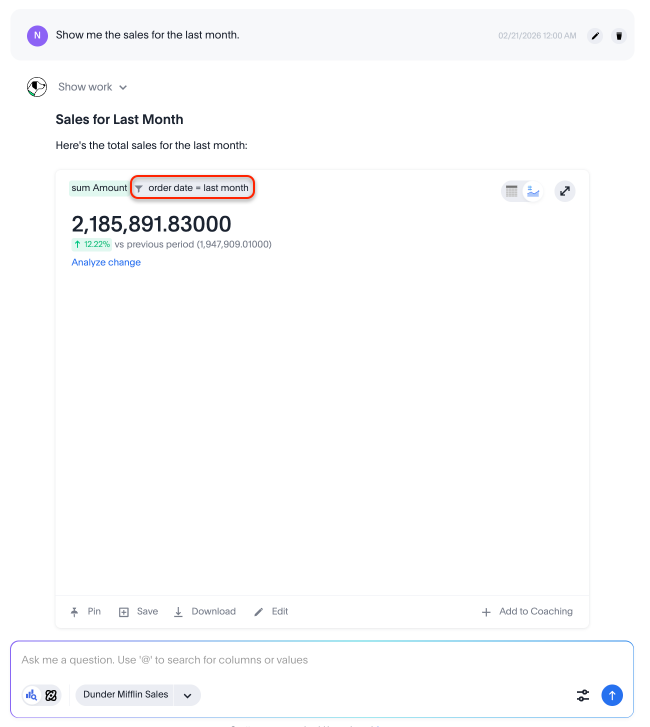
Open Spotter and ask a question. For example, you could say, “Show me the sales for the last month.”
-
Let’s say your company defines “last month” as the last 30 days. If Spotter answers your question with the date filter “last month,” you can add context to correct its answer.
-
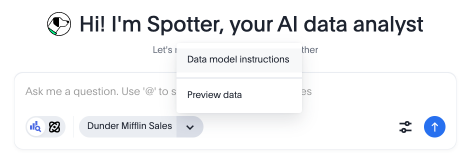
Click the caret next to the name of the data source in the search bar and select Data model instructions.

-
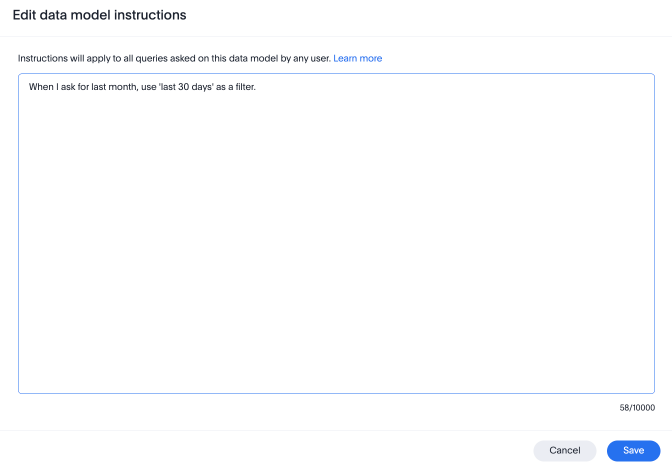
In the text box that appears, type your instruction. For example, you could say, “When I ask for last month, use ‘last 30 days’ as a filter.”
-
Click Save.
-
When the pop-up closes, Spotter displays an acknowledgement that Instructions have been updated. Click Regenerate last answer to see the updated answer to your question and verify that Spotter has understood your instructions.

Give instructions on a Model
To give instructions on a Model, follow these steps:
-
Open the Data workspace and select your Model. You must have edit access to the Model to add instructions.
-
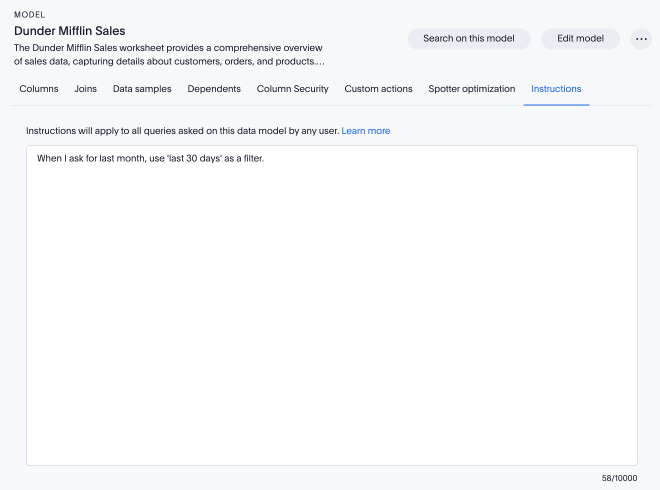
Click the Instructions tab.
-
In the text box, type your instruction. For example, you could say, “When I ask for last month, use ‘last 30 days’ as a filter.”
-
Click Save changes.
Key use cases
Data model instructions are a versatile tool for shaping how the system interprets queries and presents answers. The primary use cases are:
- Data filtering and refinement
-
Apply automatic filters to ensure analyses are consistent and accurate. This can be broken down into two main types:
- Applying conditional filters
-
Teach Spotter to apply different logic based on the user’s query.
- Example
-
To use different fulfillment centers based on the product line, you can instruct: "For queries about 'Electronics' sales, filter for Fulfillment_Center = 'FC-West'. For 'Apparel' sales, filter for Fulfillment_Center = 'FC-East'".
- Applying default filters
-
Set up a rule that always applies a filter to clean up data.
- Example
-
To ensure internal test data is always excluded from revenue analysis, you can instruct: "When calculating revenue, always exclude transactions where Account_Type = 'Internal Test'".
- Column selection and prioritization
-
Guide the system to use the correct columns for analysis, filtering, or aggregations.
- Example
-
If a query for "market" could ambiguously use a
CityorCanvas Marketcolumn, you can direct the system with: "Prefer Canvas Market column over City column for filtering market values". - Example
-
To ensure counts are always accurate, you can specify the column to use for counting: "For counting customers, always use the unique count of ‘Customer Cred ID’".
- Answer enrichment
-
Automatically add more detail to answers to make them more comprehensive without requiring the user to ask for every column explicitly.
- Example
-
If a user asks for basic provider information, you can enrich the answer with more detail using the instruction: "Provider demographic info is name, address, tax info, class and state code".
- Date handling
-
Manage how the system handles date and time analysis, especially when a user omits a time frame.
- Example
-
To prevent expensive, wide-ranging queries and align with common user preferences, you can set a default time period: "If a query does not specify a time period, apply a default filter for the 'last 30 days'".
Best practices for writing instructions
- Be specific and direct
-
Write your instruction as a clear command to ensure the system applies your rule correctly and predictably. For example, "Exclude all sales from 'Internal Test' accounts" is better than "I don’t usually want to see our internal test accounts in reports."
In many cases, using preferential language like "Prefer A over B" can be more effective than a hard command like "Use A".
- Be clear about when the instruction should apply
-
Every instruction should make it obvious to the system whether it applies to all queries or only in specific situations.
- For rules that should always be in effect, use the word 'always' explicitly
-
For example, "Always apply the filter 'Customer_Type = 'paid' when analyzing customer data on this data model." "Always exclude rows where Account_Name = 'thoughtspot, inc.' from all analysis."
- For rules that are situational or should yield to the user’s intent, use "unless" or "if… then" language to define the boundary
-
For example, "Always apply a default filter for 'last 30 days' unless the user specifies a different time period in their query." "For queries about 'Electronics' sales, filter for Fulfillment_Center = 'FC-West'. For 'Apparel' sales, filter for Fulfillment_Center = 'FC-East'."
If you do not specify when the instructions should apply, the system must guess-- and guessing leads to inconsistent behavior across queries.
- Group instructions by concept
-
Instead of creating many separate instructions for small, related rules, it is better to group them. Focus on teaching all the logic related to a particular business concept in a single, well-structured instruction. This helps the system understand the full context and know which rules to apply when a user’s query mentions that concept.
- Match your data’s language
-
Write instructions using the exact names for columns and the precise values stored in your data. This removes guesswork for the system and leads to more predictable results.
- Example
-
Instead of a generic (less effective) instruction: "Exclude canceled orders when calculating total revenue", use a more precise (more effective) instruction: "Exclude orders where
order_status = 'CANCELLED-USER'when calculating total revenue".
- Reference columns and column values
-
Always quote the column and column value pair being referenced for better application. For example, specify that performance is measured by the 'sales' column, and when querying 'errors', exclude 'null', 'n/a', and 'empty' values from the 'Error msg' column.
Scope and access
To add or manage data model instructions, you must have data model editing access.
Users with the Can manage Spotter privilege can also manage data model instructions on any data model they have read access to. (Data model instructions are Model-level; they are separate from Spotter instructions, which apply to Spotter more broadly.) This does not change who can edit the data model itself.
Data model instructions apply at the Model level and affect all users querying the Model.
Because these instructions influence many queries, they should be written carefully and reviewed for accuracy and consistency.
Limitations and key considerations
- No automatic override behavior
-
A data model instruction does not automatically override a user’s direct query if they conflict. Instead, both the user’s query and the instruction are sent to the Model, which can lead to unpredictable results or confusing answers. This makes writing clear, specific instructions critical.
- Not recommended for mathematical formulas
-
Data model instructions are not well-suited for teaching the system mathematical formulas or complex calculations. For these scenarios, we recommend other coaching methods, such as providing a reference question with natural language context.
- Avoid conflicting memory sources
-
The instructions you provide must be coherent with each other and with reference questions and business terms. Before adding a new instruction, review your existing instructions, reference questions, and business terms to ensure they tell a consistent story. If two memory assets define the same concept differently, the system cannot reliably choose between them and results will be unpredictable.
- Unsupported capabilities
-
To set clear expectations, please note that several advanced “agentic” behaviors are not currently supported by data model instructions. These include:
-
Enforcing specific chart types or visualizations.
-
Prompting the user with follow-up questions.
-
Defining conditional query logic (for example, “if the first query returns no data, run a second query”).
-
Question deflection (preventing the system from answering certain questions).
-
How to validate your instructions
After adding an instruction, it is important to verify that it works as intended and does not interfere with unrelated queries.
-
Test the target query. If adding instructions from a conversation, click Regenerate last answer to confirm the instruction is being applied to the query you wrote it for. Review the generated answer and verify that the expected filter, column, or behavior is reflected.
-
Test with unrelated queries. Ask two or three questions that are not related to the instruction and verify the instruction is not incorrectly applied. For example, if you added an instruction to always filter to paid customers, try a query like, "What are the top 5 product categories by revenue?" and confirm the paid customer filter is not being forced onto a query where it does not belong.
-
Test edge cases. If your instruction uses conditional logic like "unless the user specifies a time period," test both paths: a query without a time period (to confirm the default applies), and a query with an explicit time period (to confirm the exception is upheld).