SpotterModel
You can use SpotterModel to generate comprehensive, optimized Models ready to use in your analysis. SpotterModel automates table selection, join creation, and column selection, while allowing you to review and customize each step.
Build a Model using SpotterModel
Let’s say you want to create a Model to analyze retail sales, specifically focusing on how sales vary across stores, customers, product promotions, and region. To build the Model:
-
Navigate to the Data workspace, and click the plus icon, selecting Model from the dropdown.
-
In the pop-up, select the Build your own Model tile. Click Next.
-
Select the Connection you want to build your Model from and click Next.
-
The Data model editor appears, showing the SpotterModel interface on the right side.
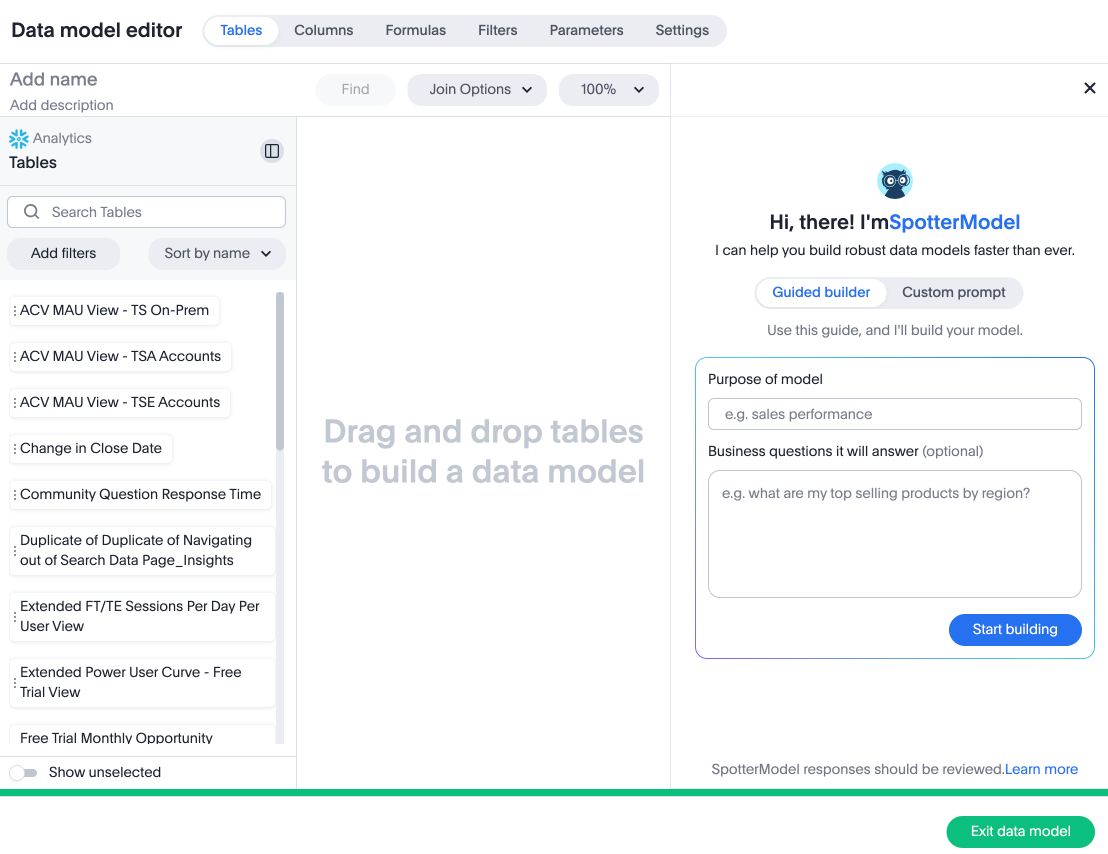
You can choose to use SpotterModel as a guided builder, or enter a custom prompt and watch as it builds.
If you choose the guided builder option, you must specify the purpose of the Model and the business questions it will answer. If you choose to enter a custom prompt, SpotterModel interprets the purpose of the Model and business questions it answers.
-
Let’s say you chose the guided builder option. Enter the Purpose of model as “Sales performance analysis”, and the Business questions it will answer as “The model should explain why sales change by looking at product attributes, store attributes, customer demographics, and promotional discounts.”
-
Click Start building.
-
SpotterModel begins analyzing the underlying data and suggests the most useful fact tables to start building your Model, showing a summary of why it chose each table, and a percentage score of how confident it is in each option. Select the most relevant option, or multiple options, and click Add selected tables to canvas.
-
As the selected fact tables appear on the canvas, SpotterModel asks what you would like to do next, Find supporting tables (or dimension tables), find more core tables (or fact tables), or create joins.
-
Select Find supporting tables. SpotterModel surfaces the most relevant tables, with a summary of how they might fit your analysis, and a percentage score of how confident it is in each option. Select your tables, and click Add to canvas.
-
Repeat as needed until all the tables you require have been selected, and choose Create joins. SpotterModel analyzes all tables on the canvas and the columns contained, and suggests the most appropriate joins for your schema.
-
Review the suggested joins, select the most appropriate ones, and click Add to canvas.
-
Click Select columns. SpotterModel analyzes the data, comparing it with your submitted prompt to choose the columns that will lead to a meaningful analysis. Review the suggested columns, and click Add to canvas.
-
Once you have selected your columns, SpotterModel automatically takes you to the Columns tab of the Model. You can prompt SpotterModel to generate better column descriptions, by entering your prompt in the chat box in the lower right corner.
-
You can continue to improve your Model by adding formulas, parameters, and filters, or you can click Save changes to save the Model as is.
Limitations
-
SpotterModel does not currently support sweeping changes to the Model to prepare it for Spotter, such as improving column names, generating descriptions, adding AI context, or checking column properties.
-
Every ThoughtSpot plan that includes Spotter will also include SpotterModel at no additional charge, except that plans priced on a row-based or unlimited-consumption model will not include SpotterModel unless separately purchased.
-
SpotterModel currently does not support filter suggestion or parameter creation.
-
Conversation history is not retained.
-
We do not support generation of Model-level instructions.
-
We do not support Column Security Rules / CLS related updates.
-
Formula deletion is not supported.
-
SpotterModel does not support table aliases.
-
We do not support the following functions in formulas in SpotterModel:
-
abs
-
acos
-
asin
-
atan
-
cbrt
-
ceil
-
cos
-
cube
-
exp
-
floor
-
ln
-
mod
-
pow
-
random
-
round
-
safe_divide
-
sign
-
sin
-
spherical_distance
-
sq
-
sqrt
-
tan
-
to_bool
-
to_double
-
to_integer
-
to_string
-
edit_distance
-
edit_distance_with_cap
-
similar_to
-
similarity
-
sounds_like
-
spells_like
-
strpos
-
today
-
now
-
date
-
time
-
year_name
-
hour_of_day
-
is_weekend
-
start_of_year
-
start_of_quarter
-
start_of_month
-
start_of_week
-
start_of_hour
-
start_of_min
-
not
-
isnull
-
first_value
-
first_value_in_period
-
last_value
-
last_value_in_period
-
greatest
-
least
-
sum_if
-
average_if
-
count_if
-
max_if
-
min_if
-
stddev_if
-
variance_if
-
unique_count_if
-
group_sum
-
group_average
-
group_count
-
group_max
-
group_min
-
group_stddev
-
group_variance
-
group_unique_count
-
moving_max
-
moving_min
-
median
-
sql_bool_op
-
sql_bool_aggregate_op
-
sql_date_op
-
sql_date_aggregate_op
-
sql_date_time_op
-
sql_date_time_aggregate_op
-
sql_double_op
-
sql_double_aggregate_op
-
sql_int_op
-
sql_int_aggregate_op
-
sql_string_op
-
sql_string_aggregate_op
-
sql_time_op
-
sql_time_aggregate_op
-
We highly recommend that you register for the free Semantic Models with SpotterModel course in ThoughtSpot University that covers the information in this article, and watch the Creating a Model with SpotterModel lesson.
See other training resources at ThoughtSpot University.

