Set up column security rules
Use column security rules to protect sensitive columns in a table and control which groups can access them. You must be a table owner or administrator to complete these steps.
|
Column security rules is an opt-in feature and must be enabled before you can use it.
|
Mark a column as protected
-
From the left-hand navigation, go to Data workspace.
-
Open the table you want to configure.
-
Select the Column Security tab. Click Add columns.
-
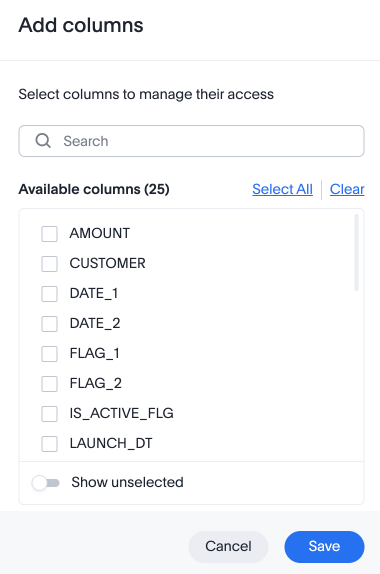
The Add columns window appears.
-
Select the column you want to protect and click Save.
The column is now protected. Until you assign at least one group to it, only the table owner and administrators can access it.
|
Protecting a column with no group assignments makes it inaccessible to all other users immediately. Make sure to assign groups in the next step before saving if you do not want to block access. |
Assign groups to a protected column
-
Open the table in Data workspace.
-
Click Column Security.
The Column Security tab shows all columns in the table and the groups that have access to each protected column.
-
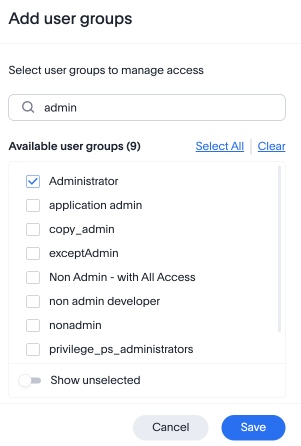
Click Manage access. The Add user groups window appears.
-
Search for and select the groups that should have access to this column.
-
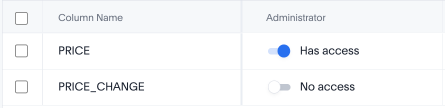
The group appears in the matrix of column security rules. Select the access toggle for the column and set it to Has access.
-
Click Save.
Users in the selected groups can now access the protected column, provided they also have access to the table itself.
View all column security rules on a table
-
Open the table in Data workspace.
-
Select the Column security tab.
The panel displays a matrix of your protected columns and their assigned groups. You can filter and sort the list to review your configuration.
Remove a group from a protected column
-
Open the table in Data workspace.
-
Select the Column security tab.
-
Select the toggle in the column security matrix for the column you want to edit. Set it to No access.
-
Click Save changes.
Remove protection from a column
-
Open the table in Data workspace.
-
Select the Column security tab.
-
Select the checkbox next to the column you want to edit. Click Remove.
-
Click Save changes.
The column is no longer protected. All users with table access can now see it, subject to the table’s existing sharing settings.
|
Removing protection from a column also removes all group assignments for that column. If you re-enable protection later, you will need to reassign groups. |
What users see when a column is protected
Users who do not have access to a protected column will not see it in search suggestions, answers, Liveboards, or SpotIQ results. If an existing answer or Liveboard includes a protected column and the user does not have access, that column’s data will not appear.
Model and view columns derived from a protected base column are also protected automatically. Users who do not have access to the base column will not be able to see the derived column either.