Create variables
ThoughtSpot introduces variables to allow you to substitute values for specific properties of an object and share them across Orgs in ThoughtSpot. You can create variables of the following types: table mapping, connection property, and formula variable. In addition, you can delete, search, edit, and rename the variables.
| You can create variables using APIs, or inside ThoughtSpot. If you are using APIs, you can also create connection property per principal variables. Instance admins can manage all variables from All Orgs. Org administrators can manage formula variables in their own Org. For more information, see Manage variables in an Org. |
Create a variable in ThoughtSpot
To create a variable in ThoughtSpot, follow these steps:
-
Navigate to the Admin tab and select All Orgs, or select the Org you want to work in. Scroll to the bottom of the left side menu and select Variables under Application settings.
-
Click the + Create Variable button in the upper right corner. The Create Variable modal appears.
-
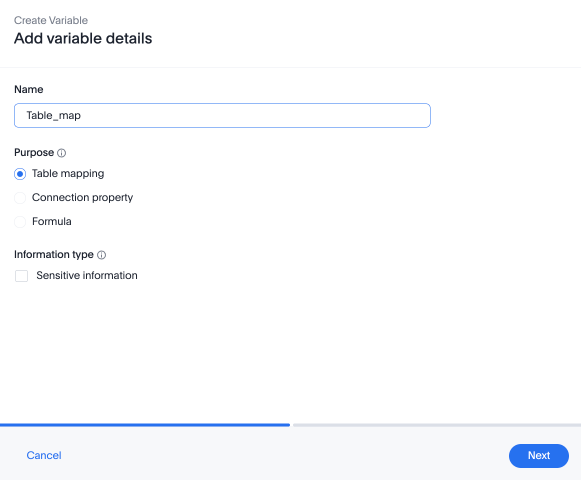
Title your variable in the Name field. The variable name must start with either a letter or an underscore (_), and can only contain alphanumeric characters and underscores.
-
Select one of the following types of variables:
- Table mapping
-
Use this for table mapping properties such as schema name, database name, and table name.
- Connection property
-
Use this for data connection properties such as account name, warehouse, user, password, and role, among others.
- Formula
-
Use this to parameterize logic in formulas and rules.
If you create a variable from inside an Org, only the Formula type is available. -
Under Information type, you can select Sensitive information. Use this to obscure information like passwords. If Sensitive information is selected, anyone who views the variable from the variables page will not be able to read the values of the variable.
Sensitive information is not supported for formula variables. -
Click Next.
-
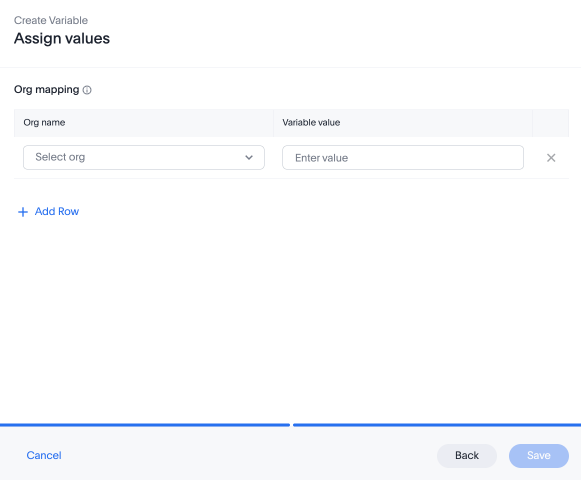
The Assign values modal appears.
-
Under Org name, select the desired Org for the variable from the drop-down list.
-
Enter the value(s) for the variable. If you want to use multiple values, use a semicolon-separated list.
If you create a formula variable with multiple values, you must separate the values using semicolons (;). -
To share the variable across multiple Orgs, click + Add Row and select another Org from the Org dropdown. Note that you can create a variable with the same values across Orgs, or with different values for each Org. You can share a variable across Orgs only from All Orgs. Inside an Org, the Org dropdown lists only the current Org.
-
Click Save.
Edit a variable
You can edit a variable from the Variables tab, either by selecting the checkbox next to the variable name and clicking Edit, or by selecting the More menu icon  and selecting Edit.
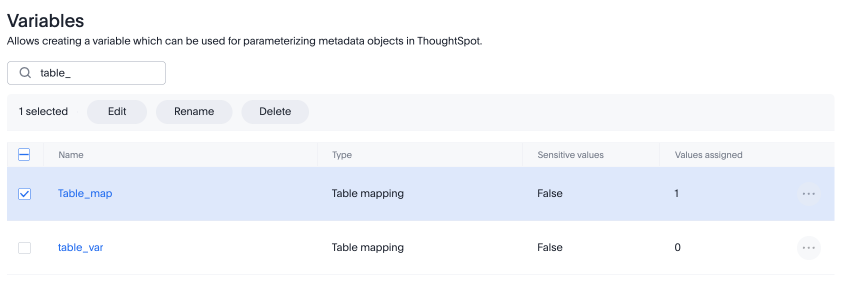
Note that the Edit Variable option only allows you to change the Org it is assigned to, or its values. To rename the variable, you must select Rename.
Inside an Org, you can edit and rename only formula variables that were created in that Org. For more information, see Manage variables in an Org.
Delete a variable
You can delete a variable from the Variables tab, either by selecting the checkbox next to the variable name and clicking Delete, or by selecting the More menu icon and selecting Delete.
You can select multiple variable checkboxes and delete them at the same time. If you try to delete a variable with dependent objects like Answers or Liveboards, you see an error message and cannot delete.
Inside an Org, you can delete only formula variables that were created in that Org.
Manage variables in an Org
In addition to All Orgs, the Variables page is available in the Primary Org and in each secondary Org. Inside an Org, you can manage formula variables for that Org without switching to All Orgs.
To see the Variables page in an Org, you need both Org administration and application administration privileges. To create, edit, rename, or delete variables, you also need the Can manage variables privilege.
Inside an Org, the following rules apply:
-
You can create formula variables only.
-
You can assign values only for the current Org.
-
You can edit, rename, and delete only formula variables that were created in the current Org.
-
Other variables that have values for the current Org, such as variables created from All Orgs, appear in the list but are read-only. The More menu is not available for these variables.
If a variable has no values for the current Org, the variable details show No values are assigned to this variable in this Org.