Link parameters across Models in a Liveboard
You can link parameters of the same type across multiple Models used in a Liveboard. This reduces the repetitive effort needed to set identical parameters for each Model. Only parameters of the same data type can be linked. Example: Integer parameters can only be linked with other integer parameters. The link must be between different Models. Parameters from the same Model cannot be linked.
A link can have any number of parameters. It is not limited to two. If a parameter is linked as secondary to another parameter (which would be the primary), the secondary parameter chip will automatically be dropped from the Liveboard’s header.
When two or more parameters are linked in a Liveboard, the secondary parameter is removed from the Liveboard filter and parameters chip. Users needs to again add this parameter in Liveboard.
| This is different from linked filters behavior where you must manually remove the chip before linking the filter. |
For example, if you have a Liveboard with Answers that use different Models, and each Model contains a parameter for "Currency", you could link those parameters so that you could change the currency used in both by using a single parameter chip.
Linking parameters across Models in a Liveboard
To link parameters across Models in a Liveboard, do the following:
-
In your Liveboard, click the More menu icon
 , then click Edit.
 -
Click the parameter chip above the Answer that you want to link to the Model used in another Answer in the same Liveboard.
-
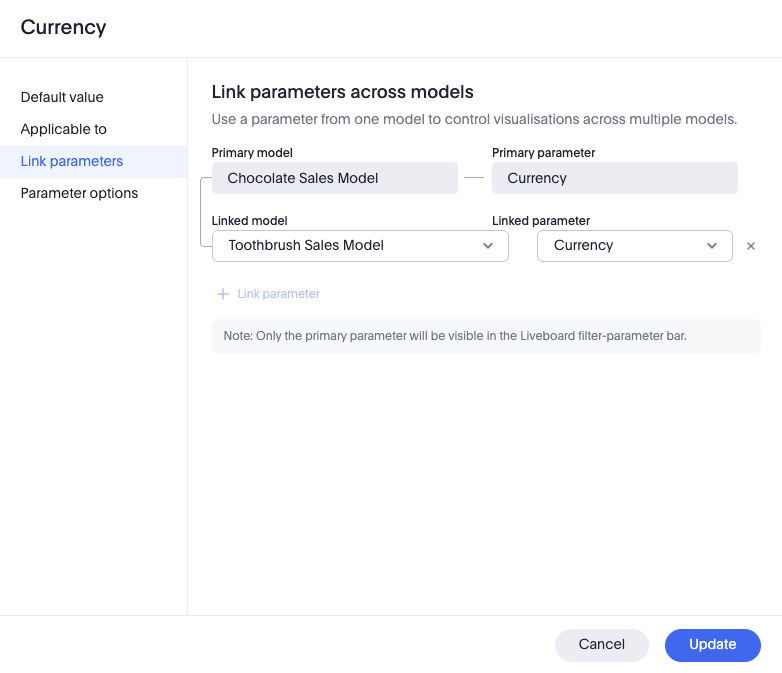
In the pop-up window, select the Link parameters tab.
-
In the Link parameters page, do the following:
-
For Linked Model, select the model you want to link to.
-
For Linked parameter, select the parameter you want to link to.
-
To save your changes, click Update.
-
Setting the default value for the linked parameter
To set the default value for the linked parameter, do the following:
-
In your Liveboard, click the More menu icon
, then click Edit.If the SpotterViz panel appears, click the Collapse button
 in the upper right to close it.
 -
Click the parameter chip for the linked parameter that you want to set a default value for.
-
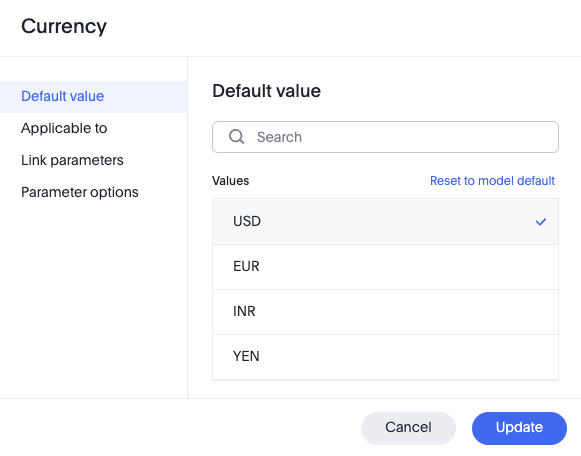
In the pop-up window, the Default value tab should be selected by default.
-
Select the value you want to use as the default, and click Update.
Example using a parameter for currency: