Chat history
Saved chat history in Spotter 3 transforms your analytical workflow by preserving your chain of thought. This allows you to access previously done analysis and continue where you left off.
| This feature is available once your administrator enables it in the ThoughtSpot AI settings. |
When enabled, Spotter automatically saves your chats in the collapsible left-hand rail. This feature ensures that your most valuable questions and analytical paths are always within reach, enabling an "analyze once, consume repeatedly" workflow.
Key benefits
- View your chat history
-
Chats are automatically titled based on your initial query and sorted by the most recent activity.
- Continue past chats
-
Pick up right where you left off. Whether it’s been two days or two weeks. Your history stays intact so every follow-up feels like a natural continuation of the original chat.
- Keep your most-used chats at hand
-
Pin the chats you return to most often to keep them at the top of the left-hand rail, above the rest of your history.
Manage your chat history
Organize and rename
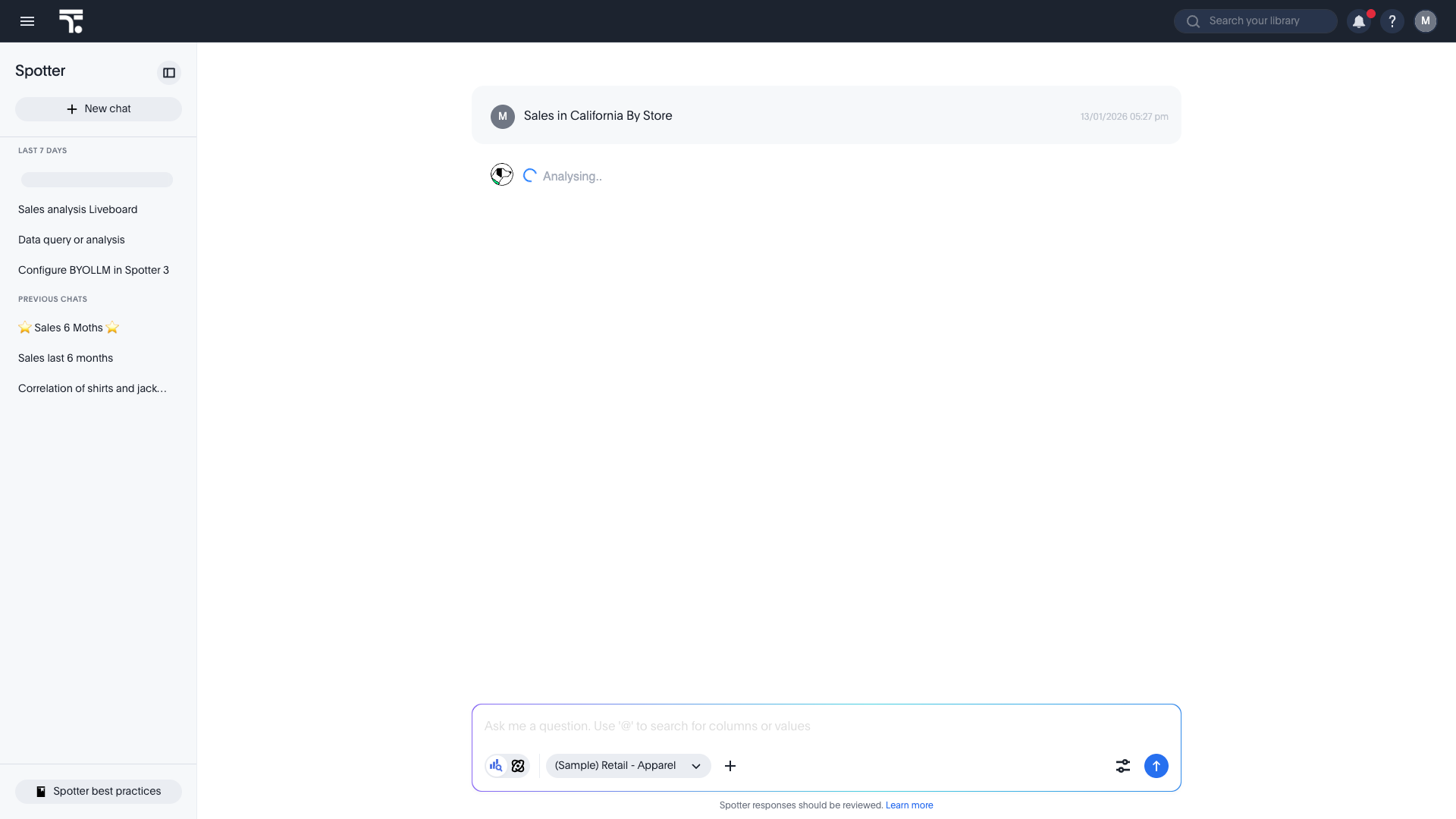
While Spotter provides an automatic title for every chat, you can personalize your history for faster reference by renaming a past chat.
-
Hover over a chat in the left-hand rail.
-
Select Rename.
-
Enter a descriptive title (for example, 🚀 Executive Review - Q1).
| Use emojis in your chat titles (for example, 📈, 🚀, 🎯) to visually categorize your threads in the left-hand rail for quicker navigation. |
Pin a chat
Pinning keeps the chats you return to most often at the top of the history, so your working set stays within reach as your history grows.
You can pin a chat from the chat history pane or from a chat you have open. There is no limit to the number of chats you can pin.
To pin a chat from the left-hand rail:
-
Hover over a chat in the left-hand rail.
-
Select the More icon
 and select Pin chat.
To pin the chat you are working in:
-
Open the chat.
-
Select the More icon
in the title bar, next to Share, and select Pin chat. Or Select the More menu from the left rail.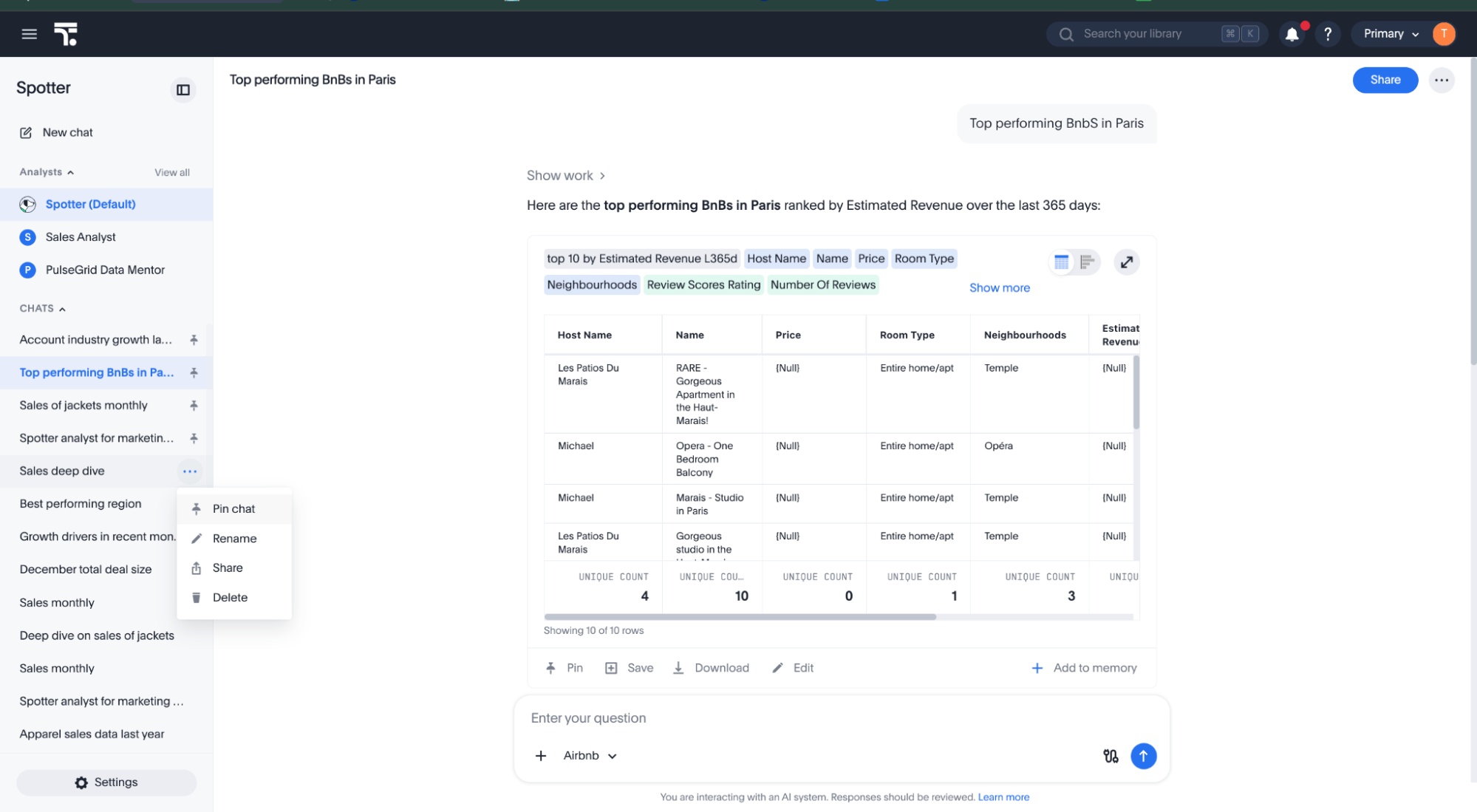
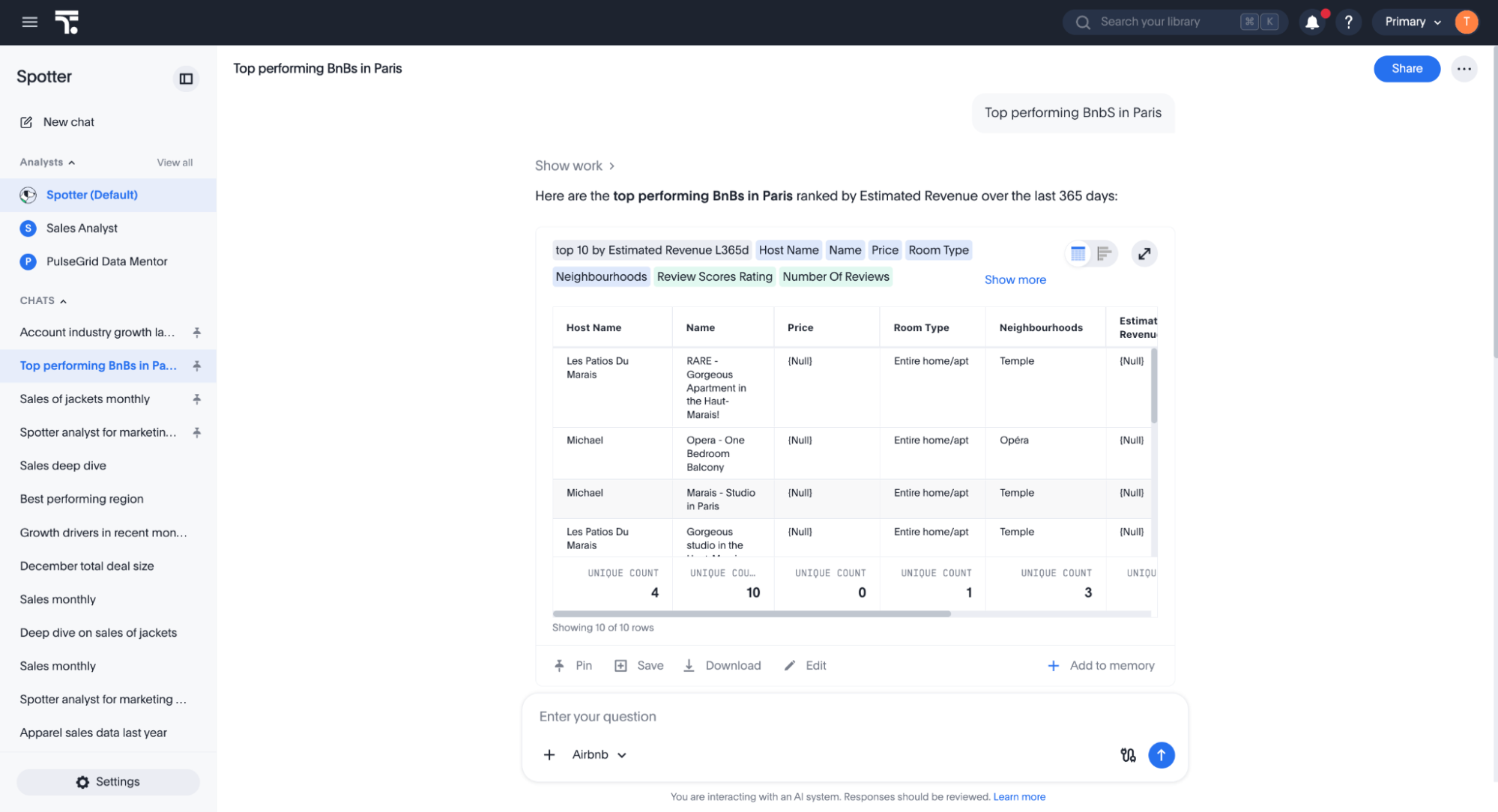
Pinned chats appear above your other chats in the left-hand rail and are marked with a pin icon.
How pinned chats are ordered
Pinning moves a chat to the top of your pinned chats, but it does not fix it in that position. Pinned chats remain sorted by most recent activity among themselves, in the same way as the rest of your history.
-
Pinning a chat counts as activity, so a newly-pinned chat moves to the top of your pinned chats.
-
Continuing a pinned chat also counts as activity. If you ask a follow-up question in a pinned chat, that chat moves to the top of your pinned chats.
Unpin a chat
-
Hover over a pinned chat in the left-hand rail, or open the chat and select the More icon
in the title bar. -
Select Unpin chat.
Unpinning also counts as activity. The chat leaves your pinned chats and appears at the top of the rest of your history, rather than returning to the position it held before it was pinned. Pinning it again returns it to the top of your pinned chats.
Reliability and security
Spotter 3 prioritizes live data accuracy and security through the following system behaviors:
Live data fetching
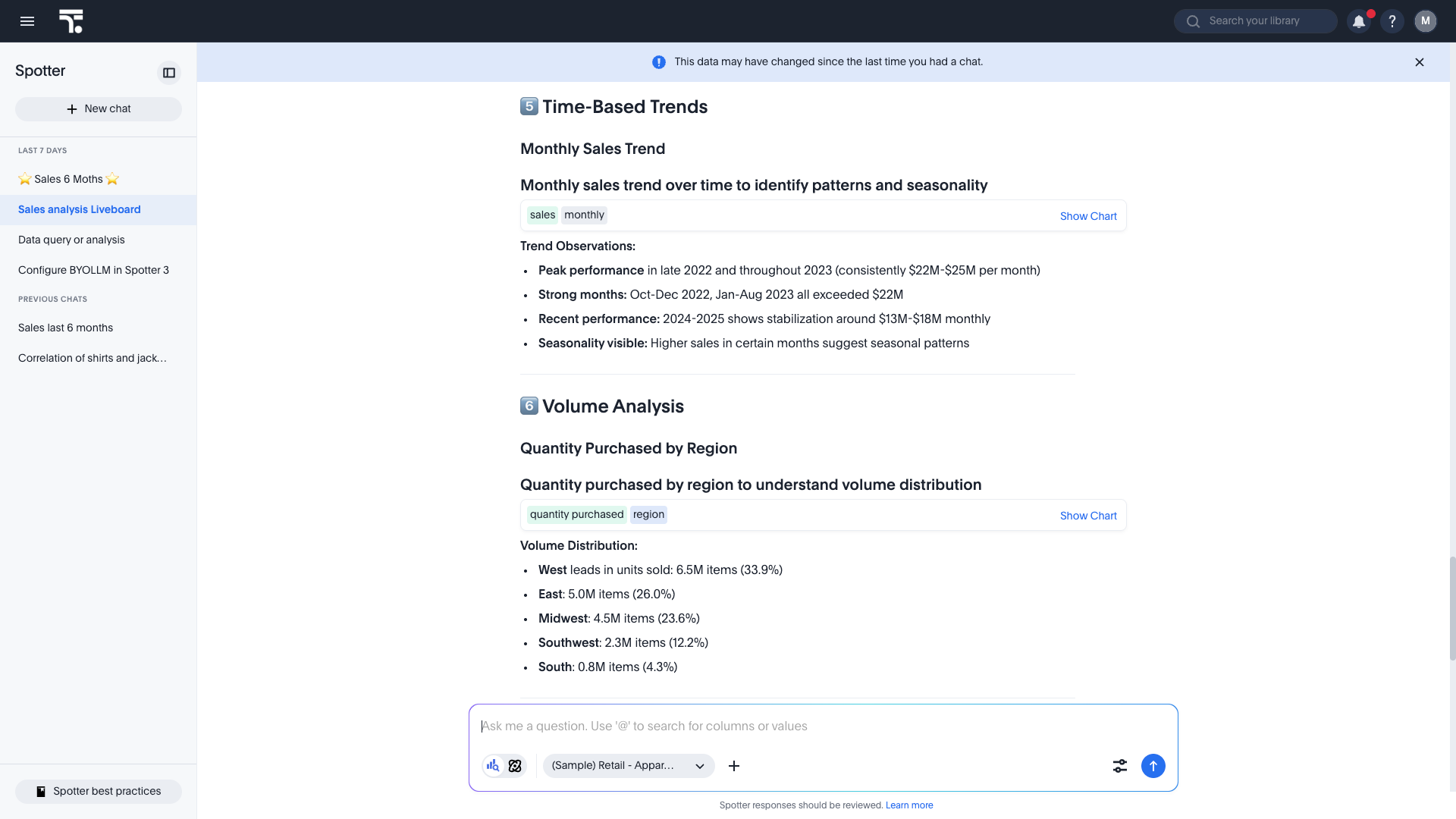
For what Spotter stores and how long it is kept, see Spotter 3 data handling. If you decide to reload a chat by default, you are only shown the search tokens used to fetch the data that was analyzed by Spotter. Upon you reloading, Spotter refetches live data from the source every time you open a saved chat.
| Because data is refetched live rather than cached, you may see a notification that the data and the old saved analysis in the chat history are out of sync. |
Searchability
You can now search your past Spotter chats. For more information, see Search your Spotter chats.
Automated artifact regeneration
Spotter does not store impermanent artifacts (like temporary files or coding outputs) directly. Instead, it remembers the context in which they were generated.
- How it works
-
When you resume a chat, Spotter automatically attempts to refetch and regenerate any temporary artifacts, such as generated files or specific coding outputs, to answer your follow-up queries.
Permission and governance
Your saved history is fully integrated with ThoughtSpot’s security model.
- Real-time privileges
-
Spotter re-verifies your data model access, row-level security, and column-level security rules on the data model every time a chat is loaded.
- Data redaction
-
If a column or row is redacted after your original chat, the agent may still refer to the previous text analysis, but you will not be allowed to query that redacted data in follow-up questions, nor will Spotter be able to query the redacted information in the follow-up questions.