Create, edit, or delete a user in a multi-tenant environment
You can create users directly in ThoughtSpot, or import users and user groups through SAML or similar protocols.
For users who have access through SAML, the SAML installation manages all user information.
Depending on whether you are a cluster administrator or an Org administrator, you have different levels of administrator access. Cluster administrators can see, create, and manage users in any Org; Org administrators can only see, create, and manage users in the Org(s) for which they are admins.
|
This article contains instructions for managing users if your company does NOT use Identity and Access Management V2 (IAMv2). IAMv2 is off by default. If the Users section of the Admin Console does not contain an Account Activation column, your company is not using IAMv2. If the Users section of the Admin Console contains an Account Activation column, your company is using IAMv2. Refer to Create, edit, or delete a user using IAMv2. |
Create a user in ThoughtSpot
This procedure demonstrates how to create a user manually. When you create a user, you can specify the username, display name, sharing visibility, the password, email, whether they get a welcome email and its text, and assign group memberships. The user inherits privileges and permissions directly from the group assignments.
Note that all users automatically belong to the group All.
To create a new user and assign that user to groups or Orgs, follow these steps:
-
Ensure that you are in the correct Org. If you are a cluster administrator, you can manage all users in all Orgs from the Primary Org. If you are an Org administrator, you must navigate to the specific Org the users you must manage are in. Use the Org Switcher to the left of the help menu in the top navigation bar.
-
Navigate to the Admin Console by selecting the Admin tab from the top navigation bar.
-
If you are a cluster administrator in the Primary Org, select All orgs from the side navigation bar.
-
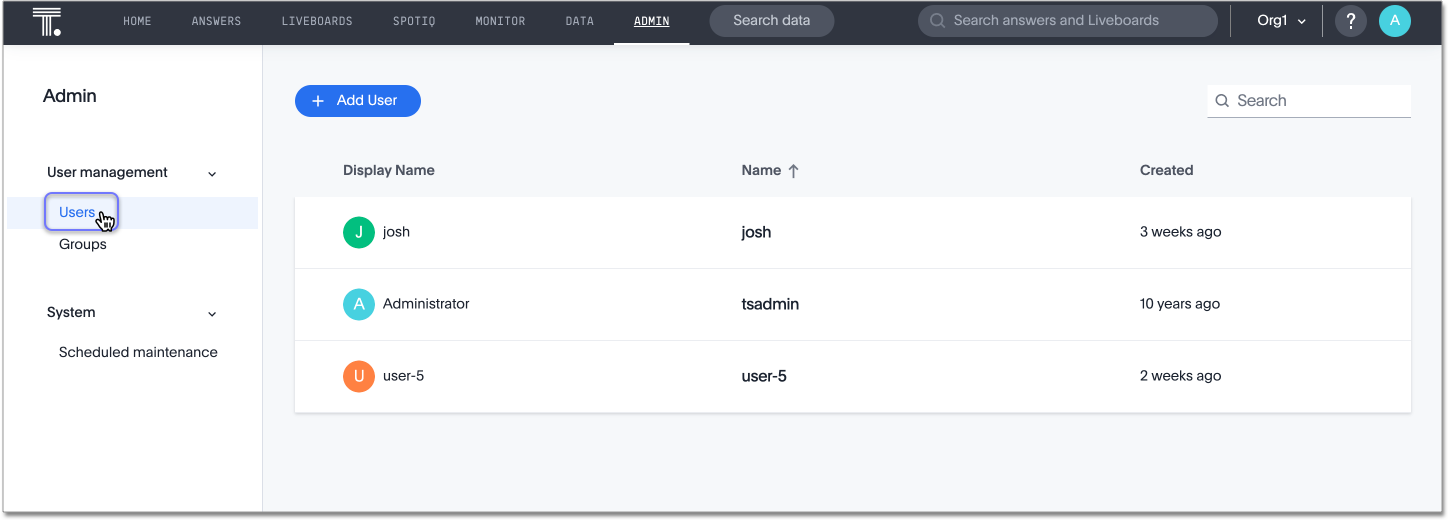
Select Users from the side navigation bar that appears.
-
Select the + Add User button on the upper-left side of the list of users.
-
In the Add a new user interface, enter the details for the new user.
You see a different interface, depending on whether you are adding the new user from the All orgs section of the Admin Console, or from a specific Org. From All orgs, you can add the new user to multiple Orgs. From the specific Org, you can add the new user to groups. 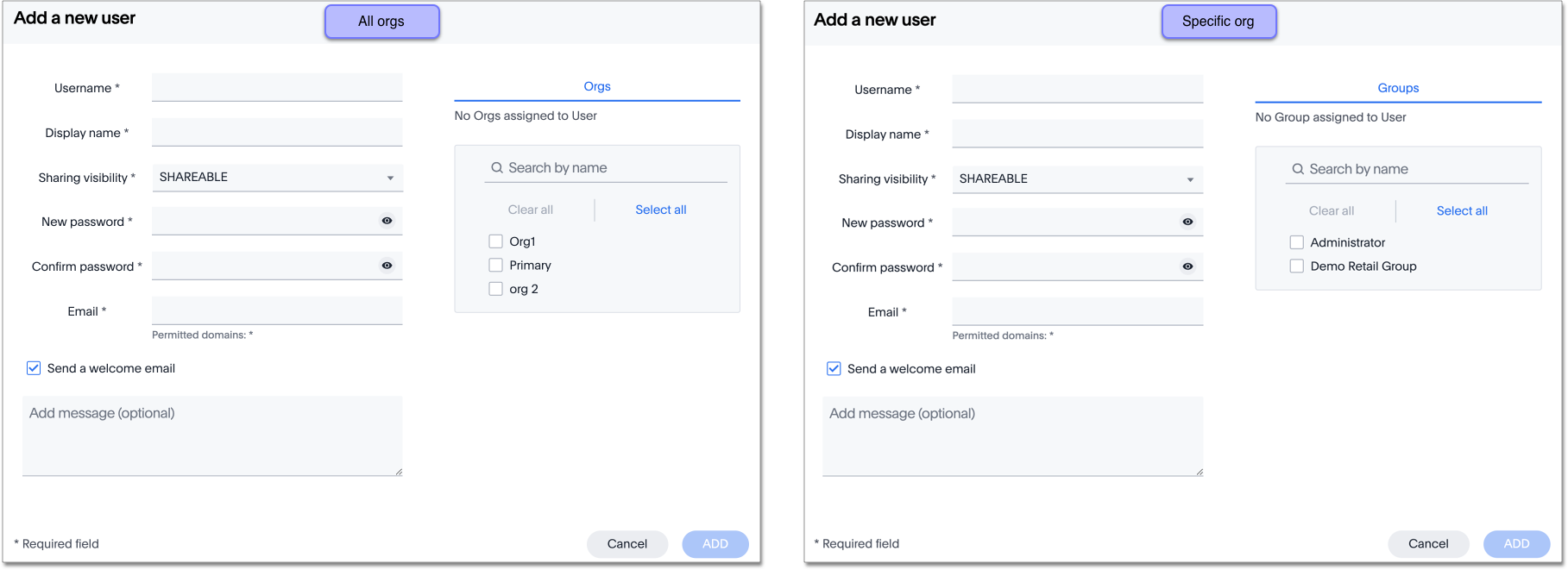
- Username
-
A login name for the user. Usernames must be unique and lowercase. If you are using Active Directory to authenticate users, and your LDAP configuration requires users to be created manually (they are not created automatically in ThoughtSpot upon authentication), the username you specify has to be domain-qualified (
username@ldap.thoughtspot.com), and you must enter a dummy password.
- Display name
-
A unique name for the user (usually their first and last name).
- Change password
-
Add or change the password. Your password must meet the following requirements:
-
The password must be 8 characters or more in length.
-
The password must include at least 1 uppercase letter, 1 lowercase letter, 1 number, and 1 special character.
-
The password must pass a complexity test based on an external library. This test ensures password complexity and uniqueness by checking for known patterns or words that are too simple. If the password is not complex enough, ThoughtSpot rejects it, even if it fulfills the other requirements. Refer to the Dropbox password library for more information.
-
The password cannot use certain blocked words. By default, the blocked words are: your username, any part of your display name, and any blocked words your company configures. To add additional words to the blocklist, contact ThoughtSpot Support.
-
- Confirm password
-
Enter the password again.
-
The user’s email address. ThoughtSpot uses this for notification when another user shares something with them, for onboarding, and others.
During cluster configuration, the administrator specifies the email server domain. ThoughtSpot does not accept emails outside this domain. Contact ThoughtSpot Support to add new domains to a list of allowed domains.
- Send a welcome email
-
(Optional) When checked, this option ensures that the new user receives a welcome email. You can customize other aspects of the onboarding email, such as the email address ThoughtSpot sends it from, from the Onboarding section of the Admin Console. Refer to Managing email and onboarding settings.
- Email message text
-
(Optional) Enter text of the optional welcome email here.
- Groups
-
(Recommended) Select the groups for the user. This option appears when you add a user from a specific Org.
When you create a new user, the groups they belong to define the following attributes for the user:
- Privileges
-
the actions they can perform, defined when you add a group and set security privileges
- Permissions
-
the data they can access and view, defined when you consider data security
Administrators can see all data sources, and row-level security does not apply to them.
If you add the user to a group that has the privilege Has administration privileges, they can see all the data in their Org. If you add the user to a group in the Primary Org that has the privilege Has administration privileges, they can see all the data in every Org. - Orgs
-
(Recommended) Select the Org(s) for the user. This option appears when you add a user from the All orgs section of the Admin Console in the Primary Org.
-
Select Add to create the user.
Note that this process of identifying the user’s needs contributes to a robust onboarding process. See Onboarding users.
Edit an existing user
As an administrator, you can edit a user account, and change the user’s groups or Orgs. You can also help users by resetting their password, and evaluating their onboarding experience to ensure they receive the best possible introduction to relevant information in ThoughtSpot.
To edit an existing user, follow these steps:
-
Ensure that you are in the correct Org. If you are a cluster administrator, you can manage all users in all Orgs from the Primary Org. If you are an Org administrator, you must navigate to the specific Org the users you must manage are in. Use the Org Switcher to the left of the help menu in the top navigation bar.
-
Navigate to the Admin Console by selecting the Admin tab from the top navigation bar.
-
If you are a cluster administrator in the Primary Org, select All orgs from the side navigation bar.
-
Select Users from the side navigation bar that appears.
-
Select the username in the list to open the Edit User interface.
If you don’t immediately see the username you plan to edit, try searching for it.
-
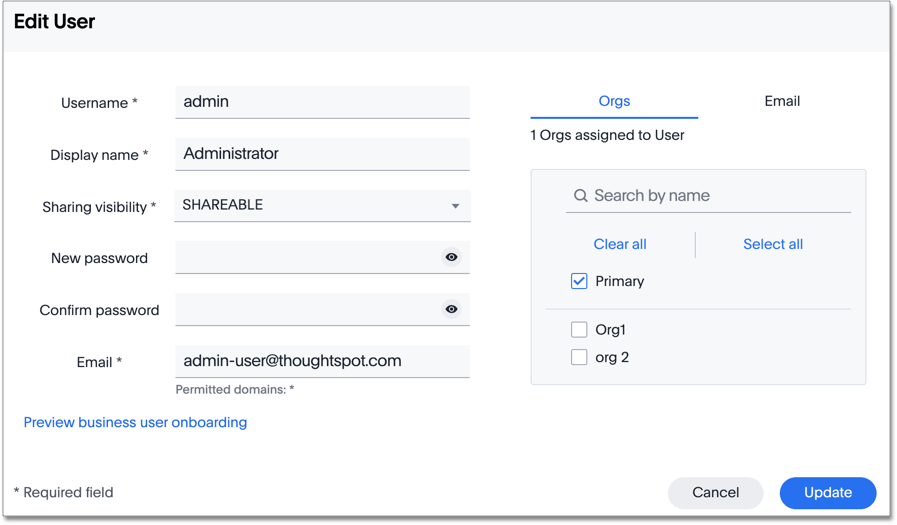
In the Edit User interface, edit the basic user information.
You see a different interface, depending on whether you are editing the user information from the All orgs section of the Admin Console, or from a specific Org. From All orgs, you can edit Orgs the user is in. From the specific Org, you can edit the groups the user is in. You can change the username, display name, sharing visibility, passwords, and user’s email.
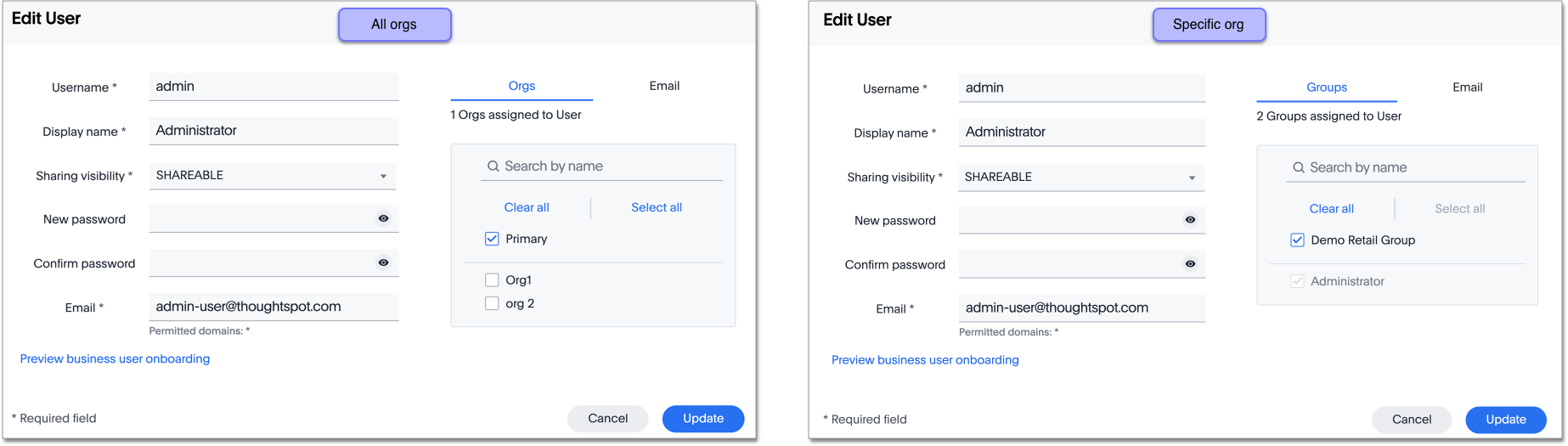
You can also preview onboarding, and make changes to the Groups or Orgs assigned to the user, depending on where you are editing the user information.
-
Select Update.
Preview onboarding
You can select Preview business user onboarding to evaluate this user’s first experience with ThoughtSpot. After previewing the user’s default data source and Liveboards, you may choose to change the Group assignments.
Groups
Follow these steps to change the user’s groups:
-
Ensure that you are editing the user from the specific Org the user is in.
-
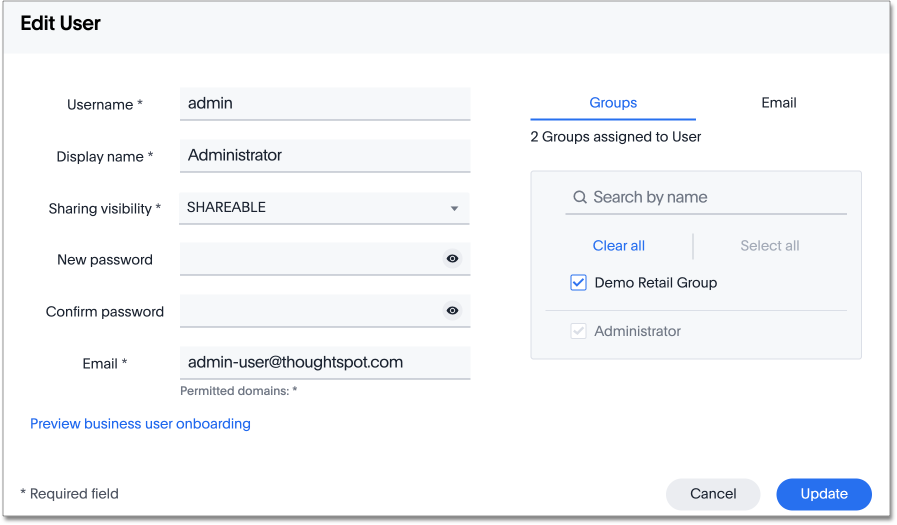
Select the Groups tab.
-
Select the groups you want to add in the list by clicking the box next to the group name.
-
You can also use Search to find groups by name.
-
Deselect the groups you want to remove from the list by clearing the box next to the group name.
-
Select Update to save changes.
Orgs
Follow these steps to change the Orgs the user is in:
-
Ensure that you are editing the user from the All orgs section of the Admin Console.
-
Select the Orgs tab in the Edit User interface.
-
Select the Org(s) you want to add in the list by clicking the box next to the Org’s name.
-
You can also use Search to find Orgs by name.
-
Deselect the Orgs you want to remove from the list by clearing the box next to the Org’s name.
-
Select Update to save changes.
Delete users
To delete users, follow these steps:
-
Navigate to the Admin Console by selecting on the Admin tab from the top navigation bar.
-
Select Users from the side navigation bar that appears.
-
Select the users you plan to delete by clicking the box next to the username.
If you don’t immediately see the username you plan to delete, try searching for it.
-
Select Delete in the upper-left corner.
|
A user may exist in multiple Orgs. You can remove a user from multiple Orgs at a time as the cluster administrator, or remove a user from one specific Org as that Org’s administrator. To remove a user from multiple Orgs at a time, the cluster administrator must be in the Primary Org, in the All orgs > Users section of the Admin Console. |
Add multiple users to an Org
To add multiple users to an Org, you must be on the All Orgs section of the Users interface. Follow these steps:
-
Ensure that you are in the Primary Org. Use the Org Switcher to the left of the help menu in the top navigation bar.
-
Navigate to the Admin Console by selecting on the Admin tab from the top navigation bar.
-
Select All orgs in the left navigation bar.
-
Select Users.
-
Select the names of users you plan to add to Orgs by clicking the box next to the username.
If you don’t immediately see the username, try searching for it.
-
Select the Add to org button above the list of users.
-
In the Add to org interface, open the dropdown menu.
-
Select an Org, or use the search bar to find an Org and select it.
-
Select Save.